Using SQL connectors for released apps
Introduction
If a SQL connector is available for an existing Process Mining app, for example TemplateOne or a Discovery Accelerator, the SQL connector is included in the released app.
Prerequisites
It is assumed that:
- the development tools described in Setting up a local test environment are installed.
- you have a Git repository for version control of the connector. See Using a Git Repository. For dashboard development and creating app releases you also need to have a UiPath Process Mining installation with access to the Git repository.
Released app
For a released app with a SQL connector, all transformations are grouped together and are part of the SQL connector. The SQL connector together with the app dashboards form the app. See the illustration below for an overview of the app structure.

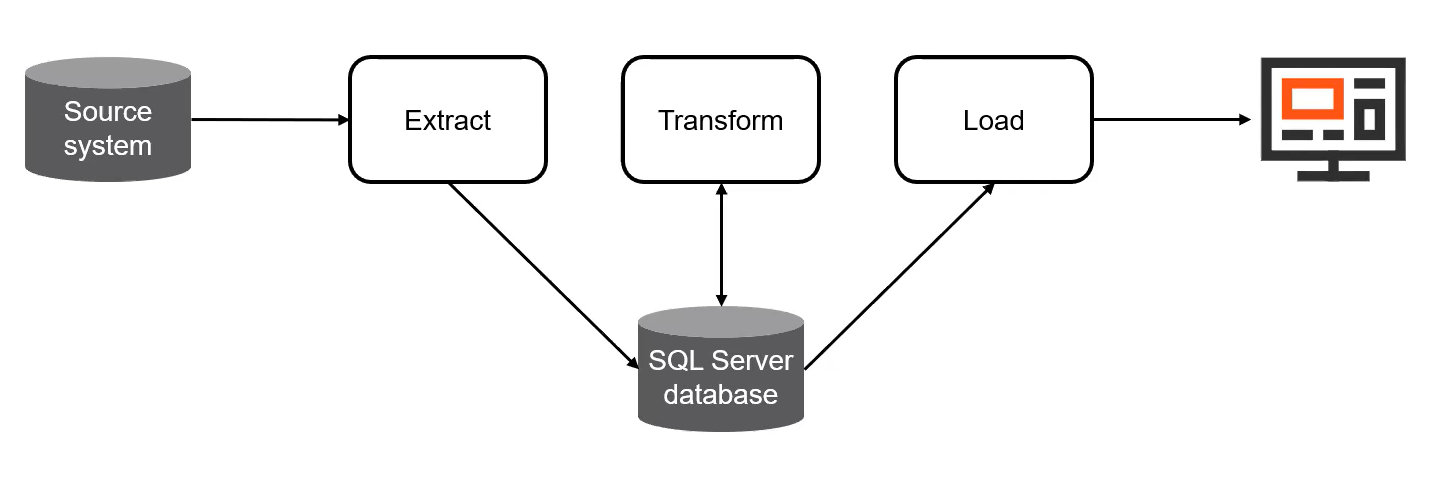
A released app contains the dashboards definitions and covers all the steps to display the data into the dashboards. The first step is to extract the data from the source system and load it into a SQL Server database. The next step is to transform the raw data is in a format that is expected by the dashboards using SQL transformations. Finally, the data is loaded into the dashboards. See the illustration below for an overview.
Setting up the app for development
If you want to customize the SQL connector or the app dashboards, you must set up the app for development.
Follow these steps to set up the app for development.
| Step | Action |
|---|---|
| 1 | Upload the release (.mvtag) to the Releases Tab. |
| 2 | Create a new app and use the released app as the base app. See Creating Apps. Make sure that you select the Git repository you created for the app. |
| 3 | Go to the Git repository and create a local checkout of the branch that contains the app. This enables you to work on the app content outside of Process Mining. It is advised to use a Git GUI client. For example GitKraken or GitHub Desktop. |
Release Contents
The local checkout contains several files and folders. See the illustration below.
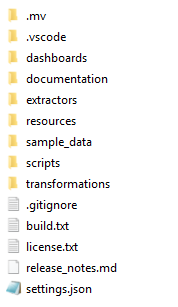
Below is an overview of the main contents of the release.
| Folder | Contains |
|---|---|
.mv | Folder containing the information of the build of the Process Mining software. |
.vscode | Workspace settings that are relevant when working in Visual Studio Code. |
dashboards | The .mvp file containing the dashboards definitions. |
documentation | System and process specific documentation. For example, how to configure the specific SQL connector, an explanation of the process, and applicable design choices. |
extractors | Instructions on extracting data and loading it in the database. By default, CData Sync is used to extract data. A load-from-file extraction will be included, that enables you to load raw data files that fit with the input of the connector. Also, a load-from-source extraction will be included. |
resources | Folder containing translation files and dashboard settings. |
sample_data | .csv files in the format of extracted data that you can use as a sample dataset in case you do not have a connection with the source system. This sample data fits with the input of the connector so that you can use it to validate your development setup, but also to preview the released app. |
scripts | Scripts to automatically extract, transform, and load the data, that you can schedule in your production environment. |
transformations | The dbt project containing the SQL statements to transform the data. |
.gitignore | Git specific file that lists the contents of the app which should be ignored in version control. |
build.txt | Info on the connector and dashboard part that were combined to create this app. |
license.txt | Standard license file of the UiPath Process Mining product. |
release_notes.md | Release notes of the app. |
settings.json | Internal settings for the app. The contents of this file do not have to be updated. |
See the illustration below for an overview of the setup.
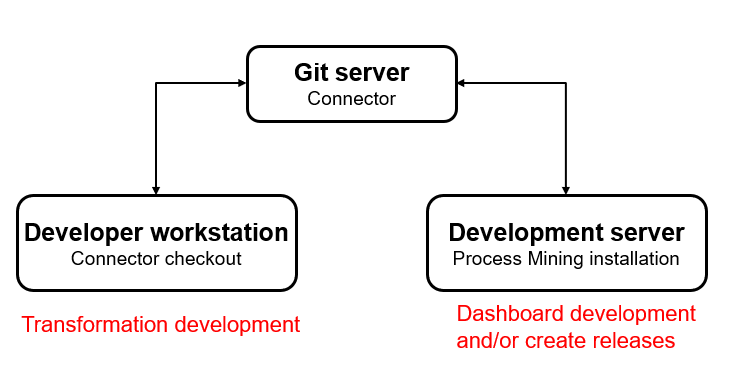
Now you can take all the steps needed to customize the transformations and edit the dashboards as desired.
See Customizing a SQL connector.
Releasing the App
Perform the following steps on the Process Mining server.
| Step | Action |
|---|---|
| 1 | Create a release. See Creating Releases. A release tag is created in the Git repository. This version is to be installed on the production server. |
| 2 | Deploy the release. See Deploying apps and discovery accelerators. |
| 3 | Configure the database connection. For example, in TemplateOne by uploading the TemplateOne.settings.csv file. |
Perform the following steps on the production server to run the transformations and load the data.
| Step | Action |
|---|---|
| 4 | Check out the released version of the app on the production server. It is advised to use a Git GUI client. For example GitKraken or GitHub Desktop. |
| 5 | Configure the dbt project and the profiles. |
| 6 | Configure the scripts. |