Viewing the branch history
Introduction
The history of a branch, consisting of all commits made, is displayed in the Log Messages pane. Each commit created a numbered revision. Revision 100 is also referred to as r100 or commit 100.
Showing the branch history
Follow these steps to show the history of your branch.
| Step | Action |
|---|---|
| 1 | Go to the Superadmin Workspaces tab. |
| 2 | Select the correct workspace from the Workspace drop-down list. |
| 3 | Click on the Workspace menu icon and select Show log.... |
The Log Messages pane opens, showing the current state of your workspace. See illustration below.
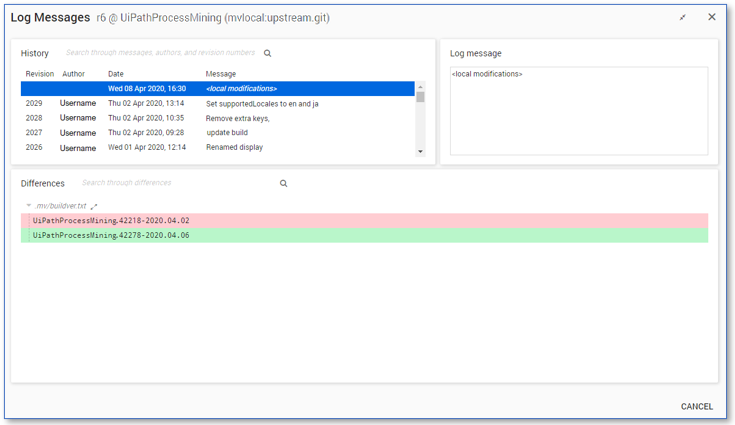
Below is a description of the elements in the Log Messages pane.
| Element |
Description |
|---|---|
|
|
Current revision (r6) @ branch (UiPathProcessMining) in repository (mvlocal:upstream.git). |
| Revision |
Number of revisions and selected revision. |
| Author |
The developer who made the commit. |
| Date |
The date on which the commit is performed. |
| Message |
A preview of the message that is written by the person who made the commit. |
| Log message |
The complete message of the selected revision. |
| Differences |
When selecting a revision all changes that were committed to the version are displayed. Note: If you select the (empty) row with message local modifications only your local changes that have not yet been committed are displayed. |