Automating applications running under a different Windows user
Description
Automating an application running under a different Windows user (than the one running Robot/Studio) fails by default.
Cause
The application running for the different user (<UserB>) is trying to load files from C:\Users\<UserA>\.nuget\packages\uipath, but it doesn't have access to that folder.
In this scenario:
<UserA>is the Windows user under which the Robot/Studio runs.<UserB>is the different Windows user under which the target application runs.
Solution
If you're automating browsers, it is sufficient to grant <UserB> access to the NuGet folder, as explained below.
If you're automating other types of applications, you must grant <UserB> access to the NuGet folder and:
- If you're using UiPath.UiAutomation.Activities older than v23.10, run the Robot/Studio as Admin.
- If you're using UiPath.UiAutomation.Activities v23.10 or newer, no further action is required.
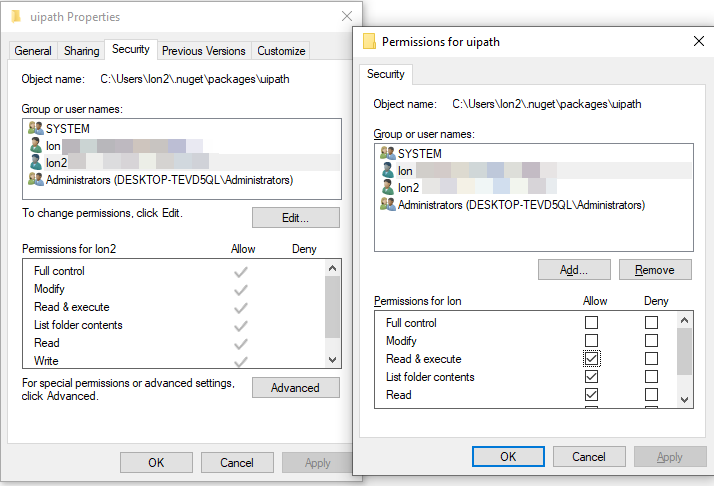
You need to grant Read & execute permissions to the different user (<UserB>) for the UiPath NuGet folder of the current user (<UserA>).
To do so, follow these steps:
- In Windows Explorer, go to
C:\Users\<UserA>\.nuget\packages. - Right-click on the
uipathfolder and choose to display the Properties window for this folder. - Go to the Security tab.
- Add
<UserB>and grant them Read & execute permissions. - Click Apply and close the Properties window.
You can now automate applications running under a different Windows user.