Chrome Extension on Mac
This extension helps you create browser automations in Google Chrome on Mac.
Install
Install from UiPath Assistant
-
Access UiPath Assistant.
-
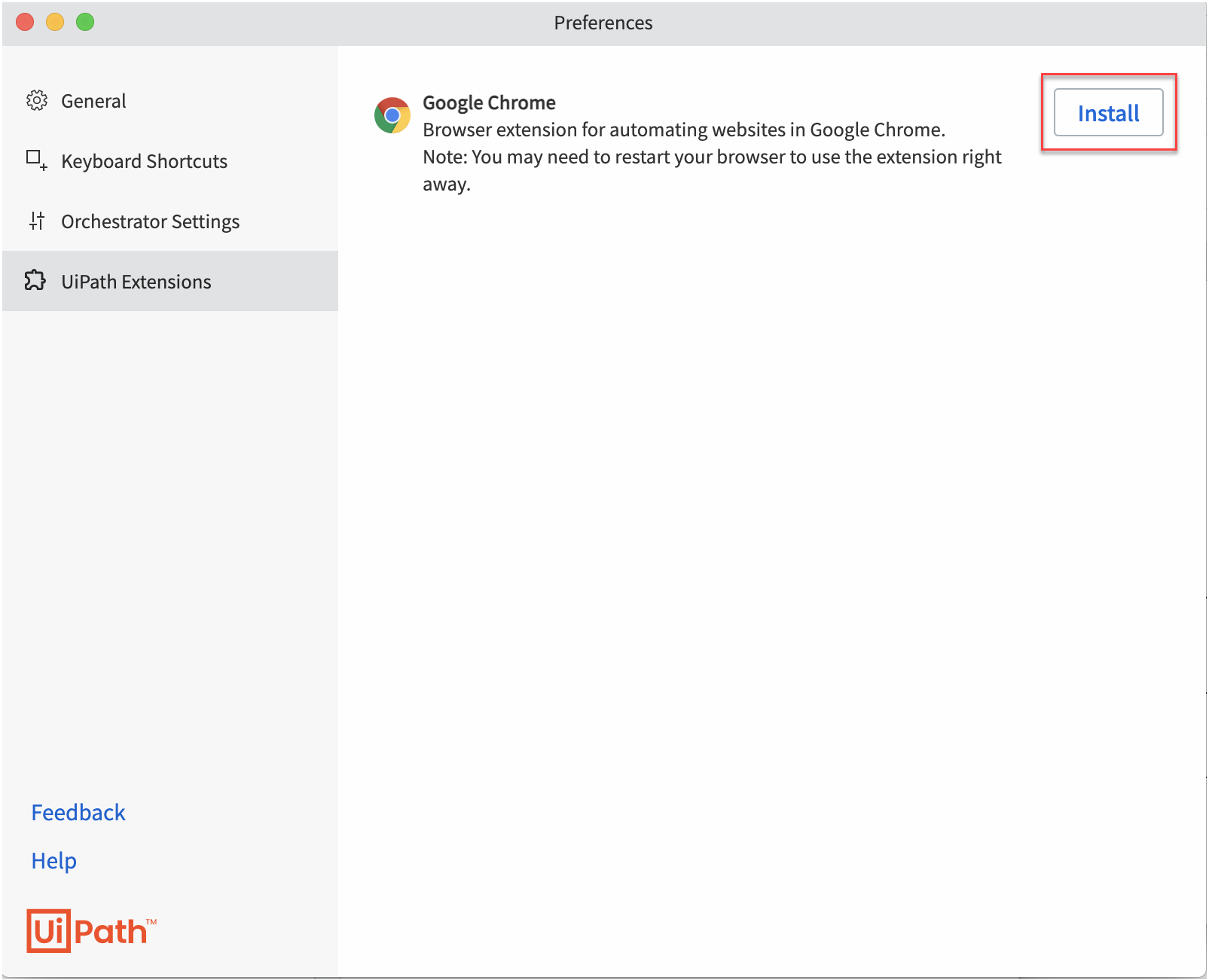
Go to UiPath Extensions.
-
Click Install for Google Chrome.
-
Click Enable Extension in the Google Chrome confirmation pop-up.

-
The extension is now installed and enabled.
Install from Terminal
- Make sure all instances of Chrome are closed.
- You can install the extension for the current user by running the following command:
dotnet UiPath.ExtensionControl.Portable.dll install chrome extnmh peruser --nmh-path=<nmh path>
3. Click Enable Extension in the Google Chrome confirmation pop-up.
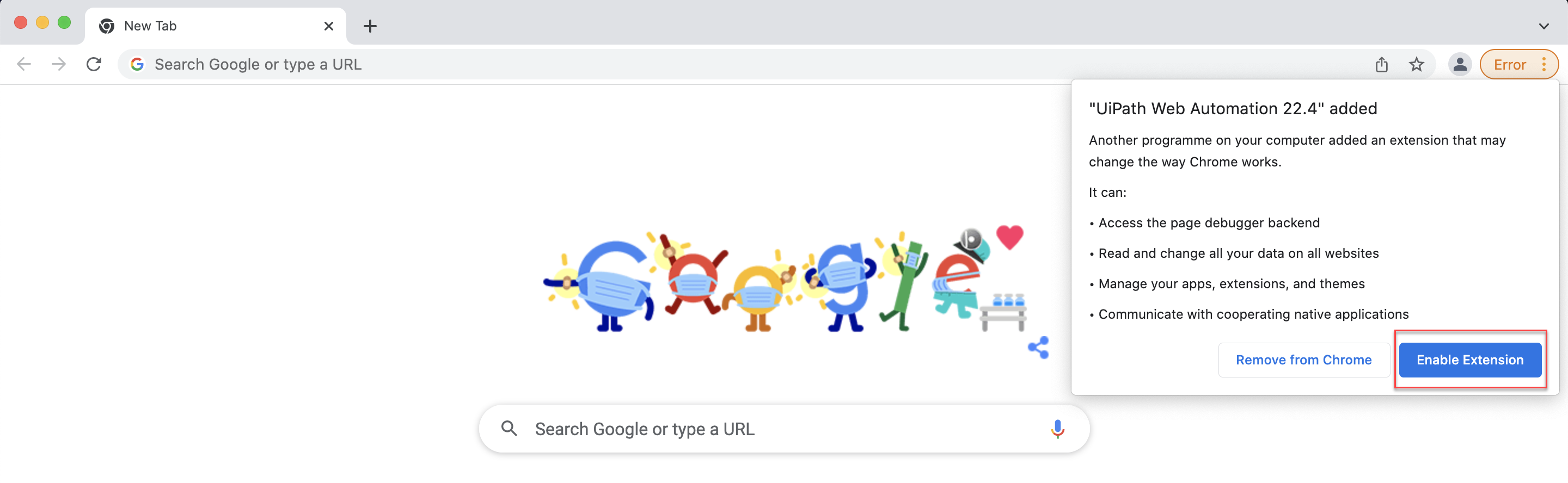
- The extension is now installed and enabled.
Uninstall
Uninstall from UiPath Assistant
-
Access UiPath Assistant.
-
Go to UiPath Extensions.
-
Click Uninstall for Google Chrome.

-
The extension is now uninstalled.
Uninstall from Terminal
You can uninstall the extension for the current user by running the following command:
dotnet UiPath.ExtensionControl.Portable.dll uninstall chrome extnmh peruser
The extension is now uninstalled.
Check status
To check the status of the Chrome Extension run the following command from Terminal:
dotnet UiPath.ExtensionControl.Portable.dll status chrome extnmh peruser --nmh-path=<nmh path>