Extension for Amazon WorkSpaces
Installing the extension
The UiPath Extension allows you to automate Amazon WorkSpaces virtual desktops natively. The extension can be installed from UiPath Studio or the Command Prompt.
Prerequisites
Before installing the extension, make sure to install the Amazon WorkSpaces client.
You can choose to install the extension either for the current user or for all users. The installation types must match, namely, the extension installation type must match the Amazon WorkSpaces client installation type. If the installation types do not match, the extension installation will fail.
Amazon WorkSpaces can be configured with either the PCoIP (PC-over-IP) or the DCV (Desktop Cloud Visualization) protocol. * Automating Amazon WorkSpaces using PCoIP requires UiPath.UIAutomation.Activities, UiPath Studio, and UiPath Remote Runtime v24.10 or higher. * Automating Amazon WorkSpaces using DCV requires UiPath.UIAutomation.Activities, UiPath Studio, and UiPath Remote Runtime v25.2 or higher.
Configuring the extension for DCV
Amazon Workspaces using the DCV protocol requires DCV extensions to be enabled. Because the support for WorkSpaces extensions is disabled by default, you must set the Configure extensions setting to Server and client – Enable extensions for both server and client.
To configure the extension for a DCV group policy, refer to Manage Group Policy settings for DCV in the Amazon WorkSpace documentation.
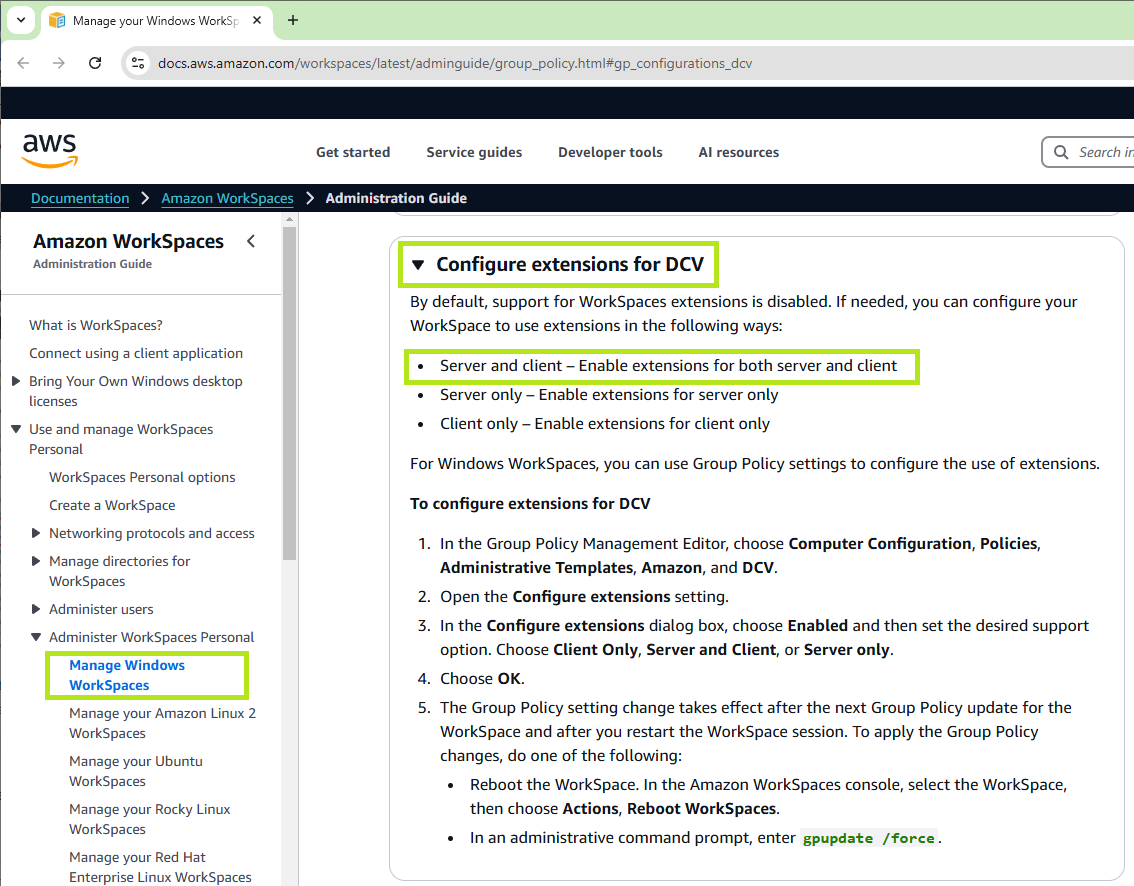
Once you enable the group policy, the following Windows registry keys are written:
Windows Registry Editor Version 5.00

[HKEY_LOCAL_MACHINE\SOFTWARE\Policies\Amazon\WSP] "hc_toggle_extensions"=dword:00000001 "hc_toggle_extension_options"=dword:00000000
You can also configure extensions from a permissions file, by referencing the following features:
extensions-client- Allows you to start the installed extensions on the Amazon DCV client.extensions-server- Allows you to start the installed extensions on the Amazon DCV server.
For more information, refer to Adding permissions in the Amazon DCV documentation.
From UiPath Studio
- Open UiPath Studio.
- Navigate to Backstage View > Tools > UiPath Extensions.
- Under Amazon WorkSpaces, select the preferred installation type from the drop-down menu:
- All Users to install the extension for all users of this machine. For this installation type, you must have local Administrator privileges and the Amazon WorkSpaces client needs to be installed for all users.
- Current User to install the extension for the current user. For this installation type, you do not need local Administrator privileges, but Amazon WorkSpace client needs to be installed per user.
- Select Install. A confirmation dialog box is displayed.
- Restart your Amazon WorkSpaces client for the changes to take effect.
- The UiPath Extension for Amazon WorkSpaces is now installed and is located at
C:\Program Files (x86)\Common Files\UiPath\UiPath.Common\.
From the Command Prompt
- Select the Windows Start button and type
cmdin the search field. - Right click Command Prompt and run it as administrator.
- Change the directory to the UiPath installation folder:
cd C:\Program Files\UiPath\Studio\UiPathfor per-machine Studio installations.cd %localappdata%\Programs\UiPath\Studio\UiPathfor per-user Studio installations.
- Use the
SetupExtensions.exe /amazon-workspaces-clientcommand to install the extension per user orSetupExtensions.exe /amazon-workspaces-client-globalto install it per-machine (for all users). A confirmation dialog box is displayed. - Restart your Amazon Workspaces client for the changes to take effect.
- The UiPath Extension for Amazon WorkSpaces is now installed.
To generate native selectors for Amazon WorkSpaces technologies, you also need to deploy the UiPath Remote Runtime component on all your Amazon WorkSpaces virtual desktops, as explained on UiPath Remote Runtime.
The UiPathRemoteRuntime.msi installer can be downloaded from:
- Product Downloads in the UiPath Customer Portal.
- Resource Center in the UiPath Automation Cloud. To access Resource Center, log in to your Automation Cloud Organization, click the Help button on the navigation bar and choose the Downloads option.
Uninstalling the extension
From UiPath Studio
- Close your running Amazon WorkSpaces client.
- Open UiPath Studio.
- Navigate to Backstage View > Tools > UiPath Extensions.
- Select Amazon WorkSpaces > Uninstall, and confirm your choice.
The extension is uninstalled for the selected installation type (All Users or Current User).
From the Command Prompt
- Close all your running Amazon WorkSpaces virtual desktops.
- Select the Windows Start button and type
cmdin the search field. - Right-click Command Prompt and run it as administrator.
- Change the directory to the UiPath installation folder:
cd C:\Program Files\UiPath\Studio\UiPathfor per-machine Studio installations.cd %localappdata%\Programs\UiPath\Studio\UiPathfor per-user Studio installations.
- Use the
SetupExtensions.exe /amazon-workspaces-client /uninstallcommand to uninstall the extension for the current user orSetupExtensions.exe /amazon-workspaces-client-global /uninstallto uninstall it for all users (per machine). A confirmation dialog box is displayed.
The UiPath Extension for Amazon WorkSpaces is uninstalled.