Configure a multi-hop connection
To reach a destination remote computer via multiple connections, you must install Remote Runtime on each intermediary remote computer, not only on the final target computer.
Scenario: RDP connections
Consider the following scenario:
- Machine A (with Studio and/or Robot) connects via RDP (Microsoft Remote Desktop Protocol) to Machine B, and
- Machine B connects via RDP to Machine C, where the target application is running, and the automation must be performed.
In this example, the following configuration is required:
-
Machine A – install Studio/Robot and the Extension for Microsoft Remote Desktop and Apps (UiPath RDP extension).
-
Machine B – install the Extension for Microsoft Remote Desktop and Apps and
UiPathRemoteRuntime.msi. -
Machine C – install
UiPathRemoteRuntime.msi.
If other types of connections are used between two machines, you must configure a connection at each hop, with the appropriate extension:
- Extension for Citrix for the case of Citrix connection
- Extension for Microsoft Remote Desktop and Apps (UiPath RDP extension) for the case of RDP connection
- Extension for VMWare Horizon for the case of VMWare connection
- Extension for Amazon WorkSpaces for the case of connections to Amazon WorkSpaces
Scenario: RDP connection and Citrix connection
Let's consider another scenario in which:
-
Machine A (with Studio and/or Robot) connects via RDP to Machine B, and
-
Machine B connects via Citrix to Machine C, where the target application is running, and the automation must be performed.
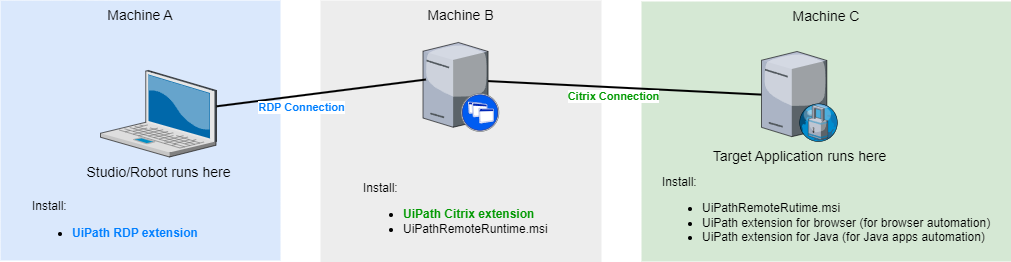
On Machine B (or other intermediary machines), you can install the extension with one of these methods:
- Run the
UiPathRemoteRuntime.msiinstaller and select from the Product Features list the required extension. Refer to Installing the UiPath Remote Runtime - From the Installer. - From Command Prompt run
SetupExtensions.exe(located in the folderC:\Program Files (x86)\UiPath\RemoteRuntime) with the parameter corresponding to the required extension:
Scenario: Remote Desktop published as RemoteApp
A more difficult to detect scenario is for example the one where Windows Remote Desktop is published as a RemoteApp, and this Remote Desktop is used to access the target application through a RDP connection:
-
Machine A (with Studio and/or Robot) uses Windows Remote Desktop published as a RemoteApp on Machine B, and
-
Machine B accesses through an RDP connection the Machine C where is running the target application.

This may initially seem like a direct connection from the Machine A to the Machine C via RDP, but it is actually a multi-hop scenario.
Such a configuration can be identified:
-
by trying to indicate a target UI element in the target application. In this case you can observe in the selector a window having the class
'RAIL_WINDOW'. Example:<wnd app='mstsc.exe' cls='RAIL_WINDOW' title='...' /> -
by opening the
.rdpfile with a text editor, where the following line can be found:remoteapplicationmode:i:1
In this case UiPathRemoteRuntime.msi needs to be installed on the 2 remote machines from this double-hop setup:
- The remote machine from where the Remote Desktop is published as a RemoteApp (Machine B).
- The remote machine to which we RDP to access the target application (Machine C).
On Machine B, the RDP extension can be installed with one of these methods:
- Run the
UiPathRemoteRuntime.msiinstaller and select from the Product Features list the UiPath extension for Microsoft Remote Desktop. Refer to Installing the UiPath Remote Runtime - From the Installer. - From Command Prompt run
SetupExtensions.exe(located in the folderC:\Program Files (x86)\UiPath\RemoteRuntime) with the parameter corresponding to the UiPath extension for Microsoft Remote Desktop.
Automating Java or web applications
Regardless of your multi-hop connection scenario, if you are automating a Java application or a web application, you must also install the corresponding extension (the extension for Java, Chrome, Microsoft Edge, Firefox) on the remote machine. This can be done by running:
- the
UiPathRemoteRuntime.msiinstaller, as described in Installing the UiPath Remote Runtime, or - the
SetupExtensions.exetool located in the installation folder of UiPath Remote Runtime (default%ProgramFiles(x86)\UiPath\RemoteRuntime), as described in About the SetupExtensions tool.