Example of Using a Do While Activity
To exemplify how to use a Do While activity, let’s create an automation that increments an integer variable from 0 to 10, and displays a message every time it is incremented.
-
Create a new sequence.
-
Create an integer variable,
Counter, with a default value of 0. -
Add a Do While activity to the Designer panel.
-
In the Body section, add an Assign activity.
-
Select the Assign activity and in the To field, add the
Countervariable. -
In the Value field, type
Counter+ 1. This helps you increment the value of the variable with one. -
Add a Write Line activity, under the Assign one.
-
On the right side of the Text field, select Plus
 > Open in Advanced Editor.
 -
Inside the Expression Editor window, type "The counter is " +
Counter.ToString. This writes the value of the counter in the Output panel each time it is incremented. -
In the Condition section of the Do While activity, type
Counter< 10. The body of the Do While activity is repeated until the value of theCountervariable is bigger than 10. The project should look as in the following screenshot.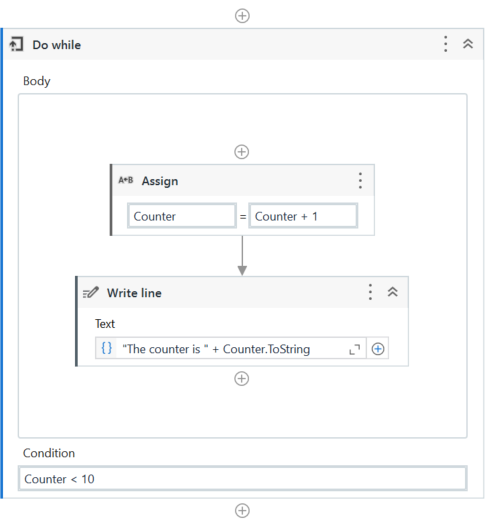
-
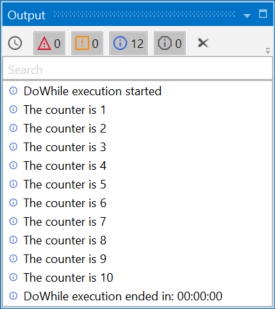
Press F5. The automation is executed. Note that the Output panel displays the message indicated in the Write Line activity.