AI-generated test data
You can generate test data that is highly specific for your testing needs, using the AI-powered capabilities offered by Autopilot™. Initially, Autopilot lets you input specific instructions, after which it produces arguments and variables that are relevant to both the instruction and the associated test data set. Additionally, you can instruct Autopilot to generate new arguments for your test data set that are later added to your test case.
Prerequisites
For Autopilot to generate test data, your test case must contain arguments of the types that we currently support. Check the Supported argument types section for the list of argument types that you can include in your test cases.
Supported argument types
The supported argument types for AI-generated test data are:
StringInt32,Int64DoubleDecimalBooleanCharByteSByteUInt16,UInt32,UInt64Single
Generate test data for test cases
To generate test data with Autopilot for a low-code or coded test case:
- Open the Test Explorer.
- Right-select the test case for which you want to generate test data, and select Add Test Data.
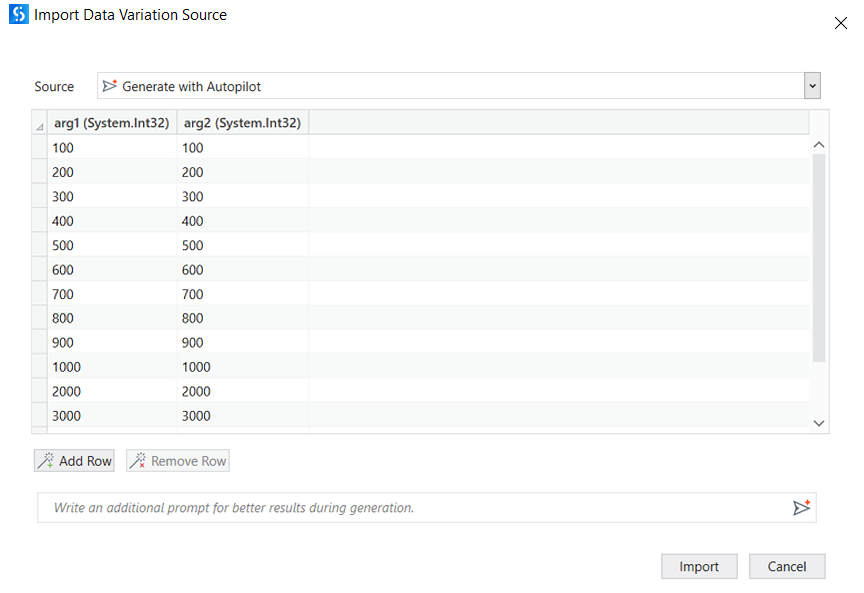
- From the Source dropdown list, select Generate with Autopilot.
- Enter instructions in the Write down your prompt text field to generate a first round of test data.
- As an optional step, you can enhance the generated test data with additional prompt instructions. If instructed, Autopilot adds more arguments than the current ones. The additional arguments are then added to the test case. Additionally, you can instruct Autopilot to generate a certain number of data variations.
- When you are satisfied with the generated test data, select Import to add the data to your test case.
Figure 1. Dialog box when generating test data using Autopilot
Best practices
Visit Generating synthetic test data to check the recommendations for effectively generating AI-powered test data. The best practices contain tips about:
- How to create arguments for a robust set of data.
- How to use instructions for your preferred data combination methods.
- How to use prompts to customize your data set.