Automate Chromium-based browsers
UiPath Studio and UI Automation activities support the automation of web applications running on different browsers, including the Chromium-based browsers Google Chrome and Microsoft Edge. Browser extensions are available for each of these browsers.
You can also use the UiPath extension for Chrome to automate other Chromium-based browsers, such as Island Enterprise Browser or Talon Enterprise Browser.
To build and run web automations on other Chromium-based browsers, take the following steps:
Install the UiPath extension for Chrome using the Native Host Only installation method
This installation method enables communication between the extension and Studio/Robot without changing the Group Policies.
To install the extension for Chrome using Native Host Only, use one of the following methods:
-
In UiPath Studio, navigate to Home > Tools > UiPath Extensions. For the Chrome extension, select Native Host Only from the methods drop-down list, and select Install.
-
Run the SetupExtensions tool from the command line:
"C:\Program Files\UiPath\Studio\UiPath\SetupExtensions.exe"
/chromenativehostglobal -
Run
UiPathStudio.msiand add theCHROME_INSTALL_TYPE=NativeHostOnlyparameter to the installation command. For example:UiPathStudio.msi ADDLOCAL=DesktopFeature,Studio,Robot,RegisterService,ChromeExtension
CHROME_INSTALL_TYPE=NativeHostOnly
Install the UiPath extension for Chrome in your browser
- Open the Chromium-based browser. Go to the Chrome Web Store link of the extension you want to install (see the List of extensions for Chrome). For example, for version 24.10, go to: https://chromewebstore.google.com/detail/uipath-browser-automation/pgbnimfaaifjpebleldfhgcjdnaeafdi.
- Add the extension to your browser (for example, for the Island browser, select Add to Island).
- Restart the browser.
Example
For the Island browser, to check if the extension for Chrome is installed and enabled, navigate to island://extensions/. Make sure the extension is installed and enabled as shown in the following image:
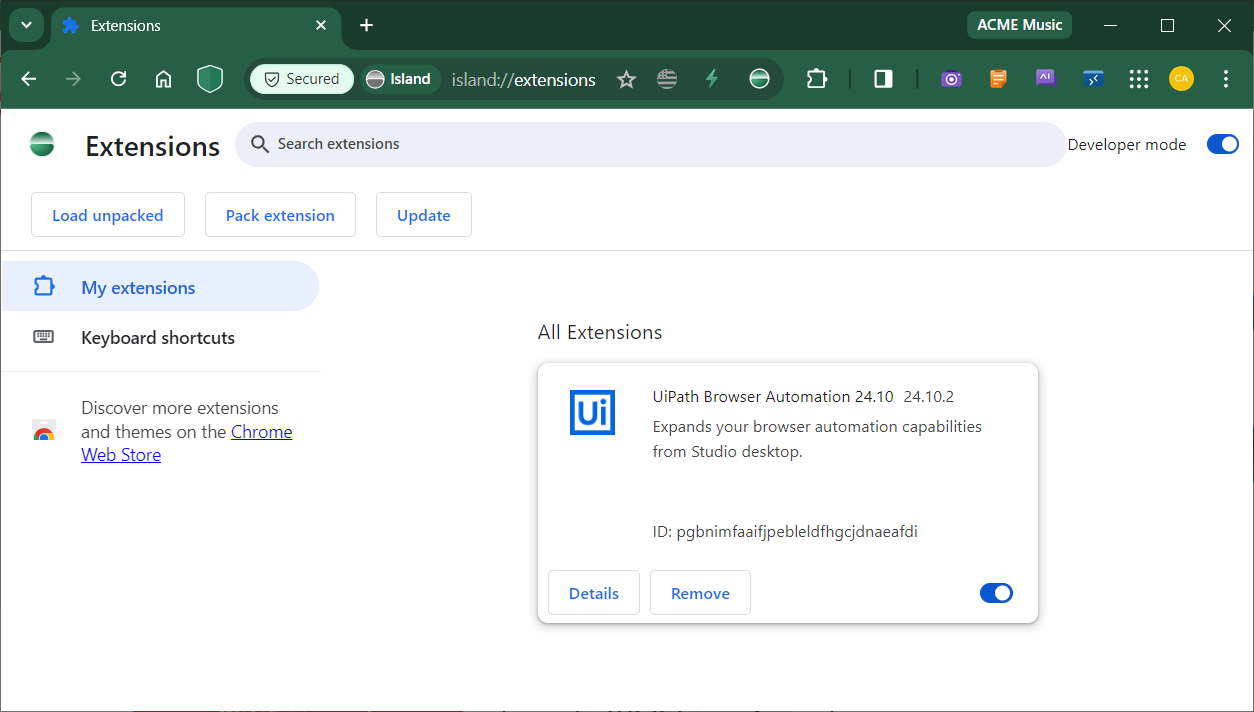
You may need to add the Chrome extension ID to the allowlist for your account (e.g., pgbnimfaaifjpebleldfhgcjdnaeafdi for version 24.10).