Using Coded automation in Low-Code workflow
In this tutorial, you can learn how to incorporate a coded automation called CodedResetAssetValue.cs into a low-code workflow. The CodedResetAssetValue.cs automation performs the following steps:
- Retrieves the current value of a specific asset from Orchestrator.
- Compares the retrieved asset value with the input value provided as an argument.
- If the previous asset value does not match the input value, it updates the asset value in Orchestrator.
- Logs messages that indicate the status of the asset value, whether it was updated or remained unchanged.
To use a coded automation inside a low-code workflow, first create the coded workflow, then invoke it in the low-code workflow using the Invoke Workflow File activity. Perform the following steps to incorporate a coded automation within a low-code workflow:
-
Create a new coded workflow. For this example, name it
CodedResetAssetValue.- Give the following return arguments to the
Executemethod to indicate if the asset value was changed and to provide the asset value:(bool assetValueWasChanged, string assetValue) - For the
Executemethod, add the following input parameters:assetName (string)andassetValue (string).public (bool assetValueWasChanged, string assetValue) Execute(string assetName, string assetValue) - Use the
GetAssetcoded automation API to retrieve the current value of the specified asset using theassetNameparameter. - Store the previous asset value in the
previousAssetValuevariable .var previousAssetValue = system.GetAsset(assetName).ToString(); - Compare the previous asset value with the input asset value using the
Equalsmethod. - If the values are equal, return
(false, assetValue)to indicate that the asset value was not changed. - If the values are different, use the
SetAssetcoded automation API to update the asset value to the inputassetValue. - Return
(true, previousAssetValue)to indicate that the asset value was changed, along with the previous asset value.
if (previousAssetValue.Equals(assetValue))
      {
        return (assetValueWasChanged: false, assetValue: assetValue);
      }
      else
      {
        system.SetAsset(assetValue, assetName);
        return (assetValueWasChanged: true, assetValue: previousAssetValue);
} - Give the following return arguments to the
-
Create a low-code workflow. For this example, name it
WorkflowUsingCodedAutomation. -
Add an Assign activity and assign a value to the
assetValuevariable. -
Add an Invoke Workflow File activity and invoke the
CodedResetAssetValue.cscoded automation. Add the required arguments.noteFor Windows projects: In the Invoke Workflow File activity, select Browse for File and change the file extensions you're browsing for, from Workflow Files (
*.xaml,*.uiwf) to All Files (*.*). This allows you to view all files, including.cs.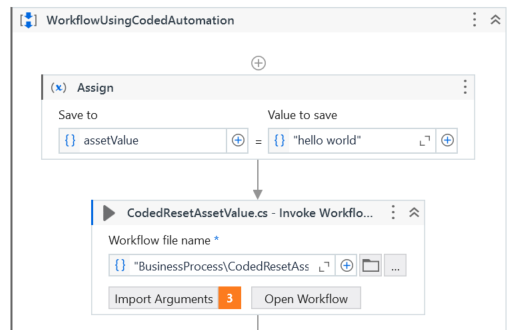
-
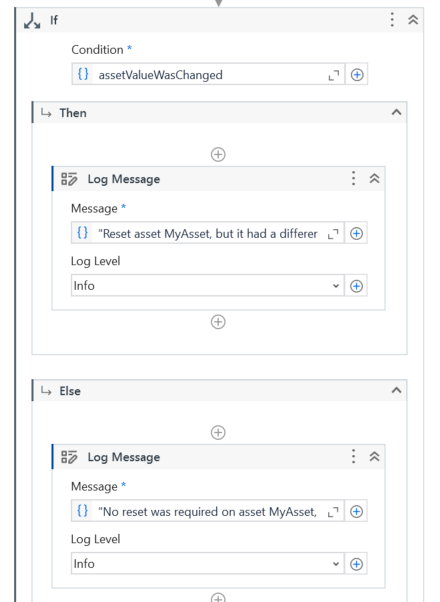
Add an If activity, and log messages for the scenarios where an asset value remains unchanged, and for the scenario where an asset value is updated.