Viewing the Commit History
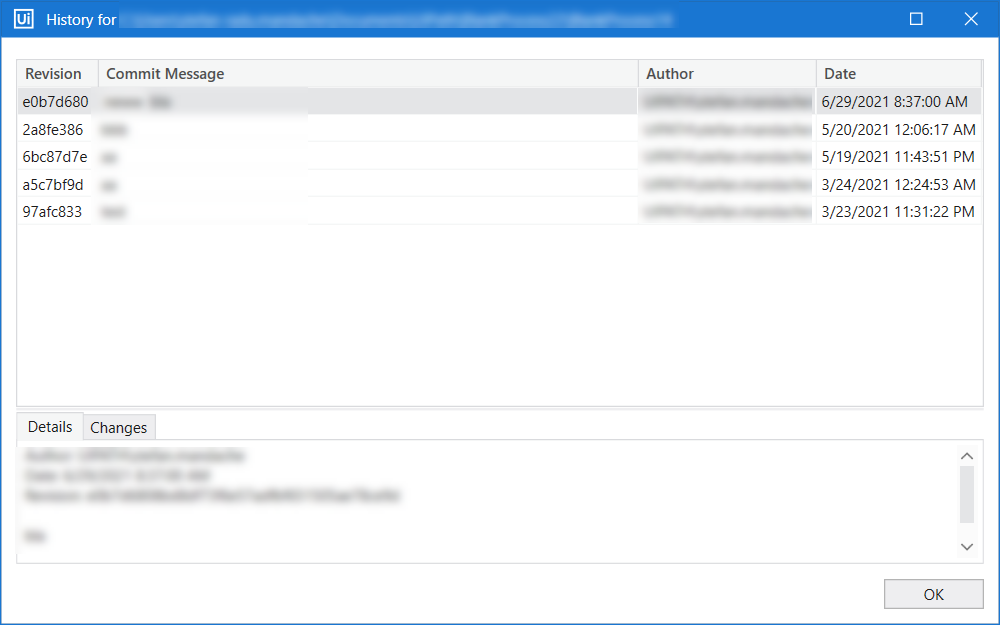
To view the commit history for a project or for a specific file or folder in a project, right-click the project node, a file, or folder in the Project panel, and then select Show History. This opens the History window which displays a list of existing revisions for the selected file, folder, or project. For each commit, the commit hash, message, author, and date are displayed in a table on the upper part of the window. You can view more information about a selected commit in the Details and Changes tabs on the lower part of the window.
Comparing Two Versions of a File
To compare two versions of the same file:
- If you opened the history for a file, right-click a commit in the History window, and then select Compare with Previous, Compare with Local, or Compare with Latest.
- If you opened the history for a folder or project, select a commit in the History window, and then, in the Changes tab, double-click a file to compare it with its previous version.
Creating a Branch from a Previous Commit
To create a branch from a specific commit:
- Right-click a commit in the History window, and then select Create branch.
- In the Create branch window:
- Enter a name for the new branch.
- To also check out the new branch, make sure the Checkout after create option is selected.
- Click OK.