PowerPoint Automation
StudioX enables you to automate the most common tasks you perform in PowerPoint presentations.
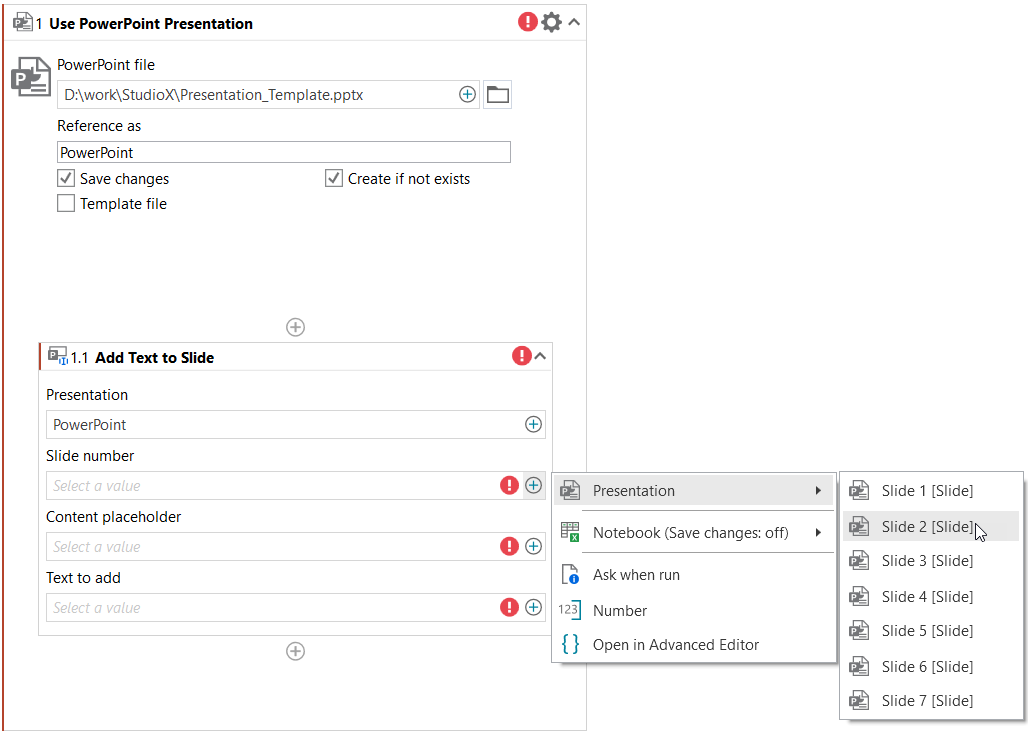
Indicate the presentation to work with by adding it to a Use PowerPoint Presentation activity, and then add the Presentation activities to automate inside Use PowerPoint Presentation.
When configuring the child activities, you can select data from the presentation such as slides, shapes, and layouts directly from StudioX. When working with a dynamic file without a template, indicate layouts, placeholders (shapes), slide masters, and macros using their name, and indicate slides using their number. To find out the name of the shapes in a presentation, in PowerPoint go to Home > Arrange > Selection Pane.
To learn how to work with PowerPoint automation, create a project based on the Create PowerPoint Presentation from Data Scraping project template.
The following PowerPoint activities are available in StudioX:
- Use PowerPoint Presentation
- Add Data Table to Slide
- Add File to Slide
- Add Image or Video to Slide
- Add New Slide
- Add Text to Slide
- Copy Paste Slide
- Delete Slide
- Format Slide Content
- Paste Item into Slide
- Replace Text in Presentation
- Run Presentation Macro
- Save PowerPoint File As
- Save Presentation as PDF
When automating PowerPoint, StudioX checks if the file you're working with is open in PowerPoint and attempts to use that instance of PowerPoint to make the options in the Plus  menu load faster.