App registrations
Feature availability depends on the cloud platform that you use. For details, refer to the Feature availability page.
Overview
UiPath® business extentions are applications that are external to your UiPath platform and can be granted secure access to UiPath resources without having to share user credentials.
UiPath business extentions are made available for consumption across all organizations by going through a rigorous validation process and then registered by an organization administrator.
Validation process
To make a UiPath business extention available and ready for registration, it must undergo a rigorous validation process. Once vetted, the application will show up in Admin > External applications page > App registrations tab > Available applications.
Managing app registrations
Registering an app
You have to be an Org Admin to perform this operation.
To register an app, follow these steps:
-
Go to Admin and select the organization at the top of the panel on the left.
-
Select External applications.
-
Select the App registrations tab to view the Registered and Available applications.

-
Select on the contextual Show more options menu of an app in the Available applications section to register an app.
-
Select Register.
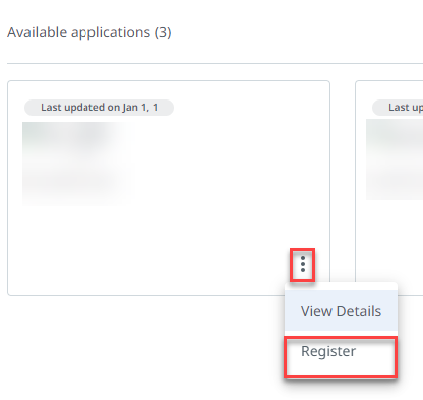
The "Application registered successfully." message is displayed to confirm that the app has been successfully registered and is ready for consumption in the organization.

Unregistering an app
You have to be an Org Admin to perform this operation.
To register an app, follow these steps:
-
Go to Admin and select the organization at the top of the panel on the left.
-
Select External applications.
-
Select the App registrations tab to view the Registered and Available applications.
-
Select on the contextual Show more options menu of an app in the Registered applications section to unregister an app.
-
Select Unregister.

-
A warning message will appear to confirm whether or not you want to continue unregistering the app. Select Unregister.

The "Application unregistered." message is displayed to confirm that the app has been successfully unregistered.

Viewing access scopes
To view the access scopes of registered and unregistered apps:
-
Go to Admin and select the organization at the top of the panel on the left.
-
Select External applications.
-
Select the App registrations tab to view the Registered and Available applications.
-
Select on the contextual Show more options menu of an app.
-
Select View Details.

-
Select the Details tab on the leftside panel to view the access scopes defined for that app.

Available applications
This page offers an overview over the apps that are available for registration in Test Cloud. More to come.
- Power Automate application