Managing organization settings
Organization settings are broadly-applicable and impact everyone who the UiPath platform. Settings can impact all tenants, all services, and all users, except where options exist to customize more granularly.
Accessing organization settings
If you are an organization administrator, you can access the Admin space, which includes the organization settings.
To access organization settings
-
From the App launcher (top left corner), select Admin. You are then redirected to the organization settings page.
-
If you are already browsing the Admin pages, select your organization name at the top of the panel on the left:

Changing the organization name or URL
Changing the organization name
- Go to Admin, select your organization, and then select Settings. The Settings page for the organization opens.
- In the Organization Name field, you can edit the name of your organization.
You can enter up to 30 characters of any type, but the last character cannot be an underscore _.
For Test Cloud Dedicated environments, when you change the organization name, the URL is automatically changed based on the new organization name. For more information on the behavior of the feature, refer to Feature availability.
Changing the organization URL
For Test Cloud and Test Cloud Public Sector, follow these steps to change the organization URL:
-
In the URL field, you can modify the URL for your organization. The formatting rules for a URL are:
- Up to 64 characters: alphanumeric or underscore
- Must start with a letter
- Must not end with an underscore (
_) - Spaces and other special characters are not allowed

-
When you're finished editing, select Save Changes to apply the new name or URL..
Changing the URL
Changing the URL for your organization (also known as your Account Logical Name) greatly impacts the entities that used the previous URL.
- Robots configured at the services level are disconnected. If you change the URL, you need to reconnect your robots , entering the new URL.
- Bookmarks containing the organization URL don't work anymore. You must send the new URL to your users.
- User invites that were sent before the URL change are no longer valid. You must send new invites for the colleagues who haven’t joined yet.
- Mobile Orchestrator users are disconnected. Send them the new URL to connect again.
After Changing Your Site URL
The URL is also known as your Account Logical Name or organization-specific URL. Changing the URL greatly impacts the entities that were using the previous URL:
- Robots configured at the service level are disconnected. If you change the URL, you need to reconnect your robots, entering the new URL.
- Bookmarks containing the organization URL don't work anymore. You must share the new URL with all your users.
- Mobile Orchestrator users are disconnected. Send them the new URL to connect again.
Changing localization settings
You can change the language either globally, with the change being propagated to all the users accessing your organization, or at a local level, for yourself only. The default language is English.
In some cases, you might need to refresh the page or log out and then log back in so that all elements on the page are localized.
Global language settings
You can change the language used for system emails sent by Test Cloud and other services to your users.
If a service has a different language setting for system emails, that setting takes precedence.
The global language setting applies to system communications only, such as emails and notifications. It does not affect the UI language displayed to users. This is by design. To change the interface language, users must update their language preference individually, as described in the User language settings section below.

User language settings
Each user can localize the user interface for themselves by selecting the desired language from the Preferences page. For details, refer to Selecting the user language.
For details about the supported languages across our products, refer to Localization Support .
Adding your company logo
Before you begin: Adding your company logo is only available for the following licensing plans:
- Unified Pricing: Application Testing Standard, Application Testing Standard Trial, Application Testing Enterprise. For details on licensing plan availability, refer to Unified Pricing licensing plan framework.
You can display your own company logo in the header:

To add your logo
-
Go to Admin, select your organization, and then select Settings.
The Settings page for the organization opens.
-
Under Company Logo, select Upload light theme logo and select the logo image.
You can upload an image file with a size of up to 3000 x 3000 pixels. We support formats that allow for transparent pixels, such as PNG. The image is automatically resized proportionally to a maximum width of 151 pixels.
-
If your logo does not look good against a dark background, select Upload dark theme logo to also add an alternative image to use when users select the dark theme.

-
Select Save to add your logo.
The appropriate logo for your current theme appears in the header.
Finding your support ID
Overview
The Support ID uniquely identifies your organization. You must provide this ID if you want to:
- Contact sales to request an upgrade to the Enterprise plan.
- Contact support for Enterprise plans. For other plans, use the UiPath® Community Forum.
Viewing your support ID
To view your support ID:
- Select the help icon
 in the header. Select the copy icon
  to copy your support ID.
 - Go to Admin. The support ID is visible in the bottom left corner of the page.
Hiding services
You can control which products and services are visible to users by hiding navigation items and homepage areas. This helps limit access to unused services and simplifies the user interface.
When a service is hidden, the navigation icon is removed for all non-administrator users. Users can still access the service by using a direct URL. Organization administrators continue to see all services.
The same configuration also controls visibility of certain homepage areas.
The UI Customization feature is only available for the following plans:
- Unified Pricing: Application Testing Standard, Application Testing Trial, Application Testing Enterprise Pro, Pro Trial and Enterprise users.
-
Go to Admin, select your organization, and then select Settings. The organization settings page opens.
-
Select the Advanced tab.
-
In the UI Customization section, review the list of available services and areas.
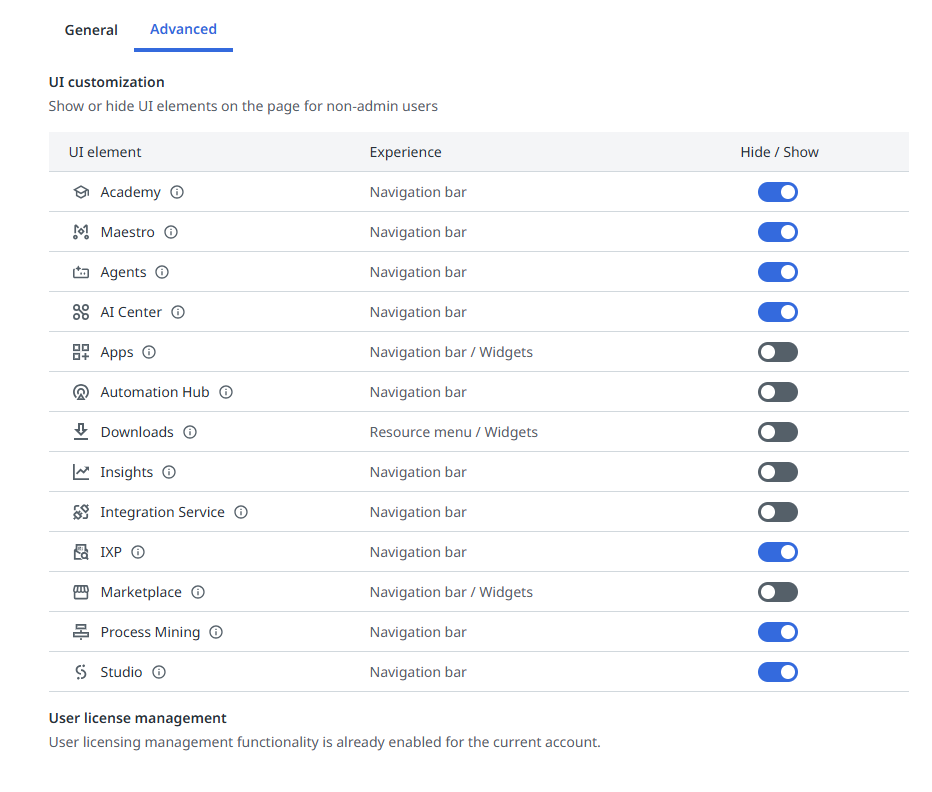
Each item indicates how visibility changes when it is hidden, such as removing the left navigation icon or removing a homepage link.
-
Select the toggle for each service or area that you want to hide or show. A confirmation dialog opens.
noteWhen you hide Downloads, the platform removes the Downloads link from both the help menu in the header and the homepage widget. Access through direct navigation is not available.
-
Confirm the change. The toggle updates to show the current state (Shown or Hidden).
-
Select Save Changes to apply the configuration.
noteIf you hide Apps, provide users with the direct URL if they still need access. Navigation to the service is no longer available.
Hidden items are no longer visible in navigation for your users, only organization administrators can continue to view them. Shown items are visible in navigation to all users.
Changing the license management option
User license management allows you to get more out of user licenses because one license can be used across all tenants. When this setting is disabled, user licenses are bound to the tenant to which they are allocated.
For more information about this option, refer to User license management.
Moving cloud organization data to a different region
To schedule data moves to a new region, contact UiPath Support to request enabling this feature for your cloud organization.
This feature is available only if your cloud platform supports multiple regions.
 This feature is only available if you are on the Application Testing Enterprise licensing plan.
Before you begin
Review the following information before requesting an organization region change:
Planning and scheduling
- Depending on the services used by your tenant, the move may require multiple days to complete. Move date(s) are determined based on required version compatibility across regions.
- A four-hour maintenance window is allocated for the region change. The average downtime is typically less than 30 minutes, but this can vary depending on tenant size. In rare cases, particularly for very large tenants, the move may take longer.
- During the scheduled downtime window, the tenant is temporarily inaccessible.
- Any running jobs are paused during the move and automatically resume after completion.
- If you have scheduled or suspended robot jobs, temporarily disable them during the downtime window to help ensure a smooth migration.
- Notify your cloud organization members in advance about the scheduled downtime window.
Scope and impact
- Changing a tenant’s region does not affect the region of other tenants or the organization.
- To move multiple tenants, submit and schedule region changes individually for each tenant.
- To schedule a move for the entire organization, follow the Performing a cloud organization data move procedure.
- For additional details about data behavior, see Organization and tenant services data.
Data considerations
- The Change organization region wizard migrates service data only. It does not change the organization region itself.
- Only supported services are available for migration.
- Services that are not supported must be recreated or manually reconfigured in the new region.
- Some services may require additional configuration after migration.
- Robot execution logs are retained for 30 days. Export logs in advance if you need to preserve them. For details, see Robot logs.
- If your processes are integrated with UiPath Apps, you must update references after the move. See Replacing a process for guidance.
- Insights can be moved to a new region. However, historical data backfilling is supported only within 30 days after moving Orchestrator. If Orchestrator is moved more than 30 days before Insights, Insights is moved without historical data, and only limited data is available after migration.
Performing a cloud organization data move
To schedule a move for the data of your organization services to a new target region, take the following steps:
-
Go to your organization Admin.
-
Select Settings and the Advanced tab.
-
Under Region, select Change region.
The Change organization region wizard opens.
Follow the three steps in the Change organization region wizard to proceed: select the region, select the downtime window, and confirm the details.

-
Select the region
Select a target region from the Organization target region dropdown.
Review the services available to move.
noteRegion availability and data move capabilities vary depending on the specific service. If a service you want to move is not available for scheduling, contact UiPath Support.
Select Next.
-
Select the downtime window
Select a preferred time from the Downtime window dropdown that has the least impact on your operations.
noteA downtime window is automatically assigned and will be used if you do not select a preferred window.
Select Next.
-
Confirm the details
Review the details before requesting to move the operational metadata for your organization alongside organization services.
Select Schedule.
The status for your organization region in Admin, then Settings, and Advanced tab page changes to Region change scheduled.

-
Select Region change scheduled to display the details for your organization move.

-
To check the new organization region, once the service and metadata move is performed, navigate to Admin, then Settings, Advanced, and Region.
Canceling a cloud organization data move
If you scheduled the move by mistake or need to cancel for any reason before the move of any services starts, take the following steps:
- Navigate to Admin, Settings, Advanced.
- In the Region section, select Region change scheduled.
- Select Cancel request.
- Select Confirm.
If you need assistance with canceling your region change, contact UiPath Support.
Deleting your organization
Feature availability depends on the cloud platform that you use. For details, refer to the Feature availability page.
Depending on your cloud platform, if you want to delete an organization, you can:
- Delete the data for a specific organization as an organization administrator.
- Reach out to UiPath support team and raise a ticket to delete an organization.
note
Local users in Test Cloud that were members of the deleted organization are not deleted as part of this operation. Users can continue to use their accounts to log in to the UiPath Forum, Academy, or any other organizations of which they are members.
Deleting organizations
If you are an organization admin, you can delete your organization and its data. Depending on the cloud platform, take the following steps to delete an organization:
- Test Cloud:
- Non-enterprise organizations: To delete an organization for which you have an active Community, Free, or Pro Trial license, you can delete the organization yourself by following the steps in the Community, Free, and Pro Trial organizations procedure, or by filling out the Trust and Security form to submit your deletion request.
- Enterprise organizations: To delete an organization for which you have an active enterprise license, you must fill out the Trust and security form to submit your deletion request.
- Test Cloud Public Sector: Fill out the Trust and security form to submit your deletion request.
- Test Cloud Dedicated: Reach out to UiPath support team and raise a ticket to delete an organization.
Non-enterprise organizations
If you are the organization administrator for an organization on the Community, Free, or Pro Trial licensing plan, you can delete the organization yourself.
When you delete an organization, the platform first performs a soft delete. The organization, services, and data become inaccessible to all users. For seven days, you can undo the deletion, but UiPath does not guarantee full data recovery. After the seven-day grace period, the data is no longer accessible.
To delete an organization:
- Go to Admin, select your organization, and then select Settings.
- Select the Advanced tab.
- At the bottom of the page, select Delete.
- In the Delete Organization dialog, select a reason for deletion and then select Continue.
- Enter the organization name exactly as shown, including punctuation and capitalization, and then select Delete.
If tenant operations are still in progress, such as enabling a tenant, the deletion cannot proceed. Wait for the operation to finish and then try again.
After deletion, the organization is no longer accessible, and the platform signs you out. The organization administrator receives a confirmation email with instructions to undo the deletion within seven days, if needed.