Using the Automation Cloud Migration Tool
The Automation Cloud Migration Tool is a desktop application designed to simplify the process of migration from one deployment option to another. The tool automates various migration steps, making it easier to transition either your standalone or Automation Suite Orchestrator to Test Cloud, Test Cloud Dedicated, Test Cloud Public Sector, or Test Cloud for on-premises.
Instructions on this page apply for migrating your on-premises Orchestrator, either standalone or via Automation Suite, to a cloud platform.
Feature availability depends on the cloud platform you use. For details, refer to the feature availability page.
Before you begin
When planning your migration from on-premises Orchestrator to a cloud platform, it is advisable that you take the following steps:
- Upgrade to a supported on-premises Orchestrator version.
- Migrate from classic to modern folders, as classic folders have restrictions in cloud platforms, meaning that they do not exist in UiPath cloud platforms.
- Run the migration tool to migrate from on-premises Orchestrator to the desired cloud platform.
note
- While other sequences are technically possible, this is the most common approach.
- The Automation Cloud Migration Tool operates independently and does not conform to our standard Product Lifecycle.
Requirements
To use the migration tool, you must meet the following criteria:
- Your standalone Orchestrator version must be supported. For specific version details, refer to our Product Lifecycle documentation.
- You need an active license for a cloud platform. For more information, refer to our Licensing documentation.
- For Flex licensing, you need a Pro, Pro Trial, or Enterprise license in Automation Cloud. While you can use the tool during a Pro Trial for evaluation, some limitations may apply, such as tenant and robot license restrictions. For more information, refer to our Licensing documentation.
Prerequisites
Before opening the Automation Cloud Migration Tool, make the following preparations:
- Depending on your cloud platform, check that the Enterprise or Enterprise Trial licensing plan is active (Admin > Licenses).
- Make sure you have sufficient robot licenses to match the number of robots being migrated (Admin > Licenses > Robots & Services). The tool migrates robots as long as there are licenses available, after which it starts to skip robots.
- Make sure you have administrator credentials for the environment you migrate from.
- Make sure you have View permission for all entities being migrated. If you do not have the View permission for some entities, those entities will not be migrated.
- Make sure you are an organization administrator in Automation Cloud to register the tool as an external application.
- Make sure the machine you run the Automation Cloud Migration Tool on meets the following requirements:
- Can connect to standalone Orchestrator, Orchestrator in a cloud platform, or Orchestrator in Automation Suite.
- Can access the cloud platform (has internet access and a supported browser);
- Runs the Windows operating system.
- Download the migration tool on the machine that meets the requirements in the previous step.
Entities migrated by the migration tool
When using the migration tool, the following entities, as described in the table, are automatically created in the cloud platform to mirror your Orchestrator setup:
| Entity |
Migrated |
Not migrated |
|---|---|---|
| Settings |
Yes, with exceptions |
Some on-premises settings, such as passwords and certain settings exposed to tenants |
| Packages |
All packages and package versions | Entities that rely on external package feeds requiring authentication Note: Authentication is required after migration is completed for external package feeds configured with basic authentication |
| Libraries |
Tenant-level feeds only | Entities that rely on libraries with host-level configurations or inaccessible external libraries |
| Calendars |
Yes |
N/A |
| Machines |
Yes Note: Potential machine slot assignments limitations due to missing licenses |
Machine keys Fails if robot account mapping is used. |
| Folders |
Yes Note: You can choose to migrate all folders in bulk, as well as individual folders. |
Personal workspace folders |
| Environments |
Yes, for classic folders. | N/A (for modern folders) |
| Robots (classic) |
Yes Note: Potential robot creation limitations due to missing licenses. |
Skipped when licenses run out, with an error logged for each skipped robot |
| Robots (modern) |
Yes Note: If certain conditions are met, robots are associated with an on-premises user that has an email address, and that same email was already invited to a UiPath cloud platform and is associated to a user. |
Skipped when licenses run out, with an error logged for each skipped robot. Fails if a user in a UiPath cloud platform does not exist. Fails if robot account mapping is used. |
| Environment associations |
The robot-environment mapping | N/A |
| Processes |
Yes Note: The migration tool may refer to processes as releases |
N/A |
| Queues |
Yes |
N/A |
| Triggers |
Yes, but they are set as disabled |
Fails if a user in a UiPath cloud platform does not exist. Fails if robot account mapping is used. |
| Assets |
Certain asset types are fully supported, with some considerations for credential assets | Per-user asset values in modern folders |
| Folder feeds |
Yes |
N/A |
Entities not migrated by the migration tool
The migration tool does not migrate the following entities:
- User and robot accounts
- Role assignments
- Queue items
- Action catalogs
- Webhooks
- Testing entities (test sets, test cases, test executions, test schedules, test data queues)
- Storage buckets
- Logs
- Tasks
Registering the migration tool as an external application
The migration tool must connect to the Orchestrator service API in the cloud platform, to create the migrated entities. It uses the OAuth flow for this and, therefore, must be registered as an external application.
To register the Automation Cloud Migration Tool as an external application, take the following steps:
- Add the tool as a new external application by following the instructions in Adding an external application. Make sure to use the following configuration:
- Type: Non-confidential
- Resources: Orchestrator API
- User scopes:
OR.Folders,OR.Settings,OR.Robots,OR.Machines,OR.Execution,OR.Assets,OR.Users,OR.Jobs, andOR.Queues. - Redirect URL:
http://127.0.0.1:8888/auth/
- Save the Application ID for later use.
Running the migration tool
The migration tool can migrate one tenant at a time. You can run the tool for each of your tenants. With each run, the tool performs the following operations:
- Connects to your on-premises Orchestrator to export entities for the given tenant.
- Connects to the cloud platform to import and create the migrated entities in Orchestrator.
For more information about entities that are subject to migration, refer to Entities migrated by the migration tool.
-
Extract the
.zipfile you downloaded for the tool, and then run the.exetool. -
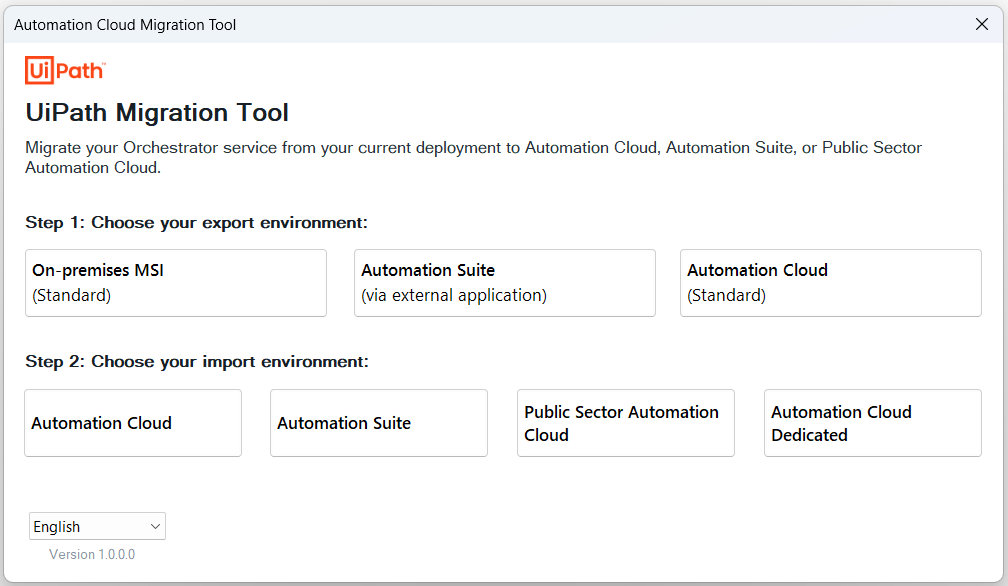
To choose your export environment, take one of the following steps:
- Select On-premises MSI, if you migrate from standalone Orchestrator.
- Select Automation Suite to connect to the external application and fill in the export input form, if you migrate from Automation Suite Orchestrator.
-
Fill in the information to allow the tool to connect to your on-premises Orchestrator.

 note
noteEnsure that the credentials you provide are for an administrator account that also has View permissions on all the entities you want to migrate.
-
Select Start Export to connect to your source environment and download the setup information. The export begins and may take a while to complete.

When finished, the export summary lists all entities that were successfully exported. You can select Open File to view the local file created for the export summary, which includes a few more details.

-
Select Home to return to the first screen of the migration tool.
-
For the activation method, this time choose Connect to Automation Cloud.
-
Fill in the information to allow the tool to connect to the cloud platform to upload the setup information. The following table describes the necessary fields to connect to the cloud platform.

| Field |
Details |
|---|---|
| Client Application Id |
The Application ID value associated with the external application registration in the cloud platform. You can find this value on the Admin > External Applications page. |
| Organization Name |
The organization-specific part of your cloud platform URL. Organization administrators can find this information in the URL field in Admin > Organization Settings . Note: You do not need to include the full URL, but only the editable part, which is specific to your organization. For example, if the URL is |
| Tenant Name |
The exact name of the cloud platform tenant where you want to add the migrated information. The migrated data will be visible in the Orchestrator service associated to that tenant. |
The import begins and may take a while to complete.
To connect to the cloud platform using OAuth, a user with the adequate permissions for the scopes added when you registered the external application must log in to the cloud offerinh. When they do, a new window opens with a success message, if the OAuth flow was successful.

When finished, the import summary lists all entities that were successfully imported into the Orchestrator service in the cloud platform.

Anything that was not imported is listed as an error and partial imports are listed as warnings. You can select View Report for more details about exactly which entities encountered an error or warning. 9. When ready, select Done to close the tool.
If needed, you can run the tool again to migrate data for additional tenants.
Post-migration tasks
Because the Automation Cloud Migration Tool cannot migrate all data, there are some final tasks that you must perform manually.
- In the cloud platform, select the tenant that was the import target, and open Orchestrator. Check that folders and entities were successfully migrated. You can use the import summary to check the specific items that had warnings or errors.
- Allocate robot and service licenses for Orchestrator. Machines are created and licensed while available licenses exist, but after licenses run out, machines continue to be created without licenses, so you must update them to allocate the adequate number of licenses.
- Manually upload any library feeds that the tool did not migrate.
- If any robots were skipped during export or import, manually create them.
- Create any webhooks, task catalogs, credential stores, or other information that the tool does not migrate. The section Entities migrated by the migration tool also includes a list of what the tool does not migrate.
- Manually connect robots to the cloud Orchestrator service.
- Manually enable triggers as needed.
- Check any locations in Orchestrator where a password is required and add it: robots, settings, and credential assets.
Getting help
If you need assistance with an issue encountered during export, import, or after import, open a support ticket and include the following files:
- Log file (in the logs sub-folder)
- Export report file (in the MigrationAssets sub-folder)
- Import report file (in the MigrationAssets sub-folder)
In addition to the previous files, it would be helpful to know the following:
- The version of your on-premises Orchestrator;
- Your cloud platform organization and tenant names.