General troubleshooting
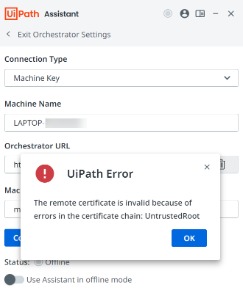
The remote certificate is invalid because of errors in the certificate chain: UntrustedRoot
The net::ERR_CERT_AUTHORITY_INVALID error occurs when your certificate expires or is involved in a certificate rotation process, indicating that it is now invalid.
It is most likely that the error occurs for the following reasons:
- You cannot access Test Cloud for Automation Suite.
- Your robot is disconnected.
Figure 1. Your connection is not private warning

Figure 2. UiPath Error message
To fix this error, take the steps, described in the following example:
-
Select the Not secure warning prompt. Then select Certificate is not valid from the dropdown menu.
Figure 3. Certificate is not valid warning

-
In the Certificate Viewer, select the Details tab. Then select Export and save the certificate.
Figure 4. Details tab

-
On your local machine, open certlm.msc and right-select the Personal folder, then select All Tasks, then select Import. Select the previously generated certificate and import it.
Figure 5. Importing certificate

-
In the same certlm.msc window from the previous step, select the Trusted Root Certification Authorities folder, then select All tasks, then select Import. Select the previously generated certificate and import it again.
Figure 6. Importing certificate

-
Connect the robot again to check that the error is fixed.
Select the View site information icon. Select Connection is secure from the dropdown menu.
Browser group policies
Signing in to your Orchestrator service from the Assistant redirects you to the SSO page. In some browsers, you may be prompted to open UiPath Assistant. This happens due to the Assistant's protocol handler not being added to the browser's group policies.
To prevent this behavior, make sure to follow the next steps, depending on the browser (Chrome/Microsoft Edge):
- Open Registry Editor.
- Navigate to
Computer\HKEY_LOCAL_MACHINE\SOFTWARE\Policies\Google\Chrome/ orComputer\HKEY_LOCAL_MACHINE\SOFTWARE\Policies\Microsoft\Edge, depending on the browser you use. - Add a new key and name it
AutoLaunchProtocolsFromOrigins. - Select (Default) to edit the key.
- In the Edit String dialog, in the Value data field, add
[{"allowed_origins": ["https://myOrchestrator.uipath.com/"],"protocol": "com.uipath.robot.oidc"}]and select OK.importantThe
AutoLaunchProtocolsFromOriginspolicy requires Chrome 85 or later. - Close all browser tabs and relaunch the browser.
- Verify that your browser applied the new policy by navigating to
chrome://policyoredge://policy. The recently added policy should be listed under the Chrome Policies or Microsoft Edge section with the OK status.