Assigning user licenses
Assignment options
You can assign user licenses to the accounts of your users in one of two ways:
Using license allocation rules
This is an option that lets you perform setup one time and not have to worry about allocating licenses in the future.
To automatically assign user licenses, you must:
- Set up a license allocation rule for a group.
- Add user accounts to the group to grant the licenses in the allocation rule.
If your groups are already configured for the main user roles, adding a user to a group lets you set up that user's account with everything they need for working in the UiPath platform.
When added to a group, a user inherits the licenses granted by the group's license allocation rule.
But make sure your groups are set up according to the needs for each set of users because group members also inherit the service-level roles that are assigned to the group throughout the different tenants and services, and the robot configuration defined for the group in UiPath® Orchestrator.
The default groups that we provide are pre-configured with all these settings for the main automation personas. You can customize these groups, or create additional groups with custom settings.
Assigning licenses to users
You can also assign user licenses to a user account directly.
Direct license allocation overwrites any licenses that the user account inherited from the groups to which they belong so that they can only use the directly-assigned licenses. Other group-inherited settings are not affected.
Managing license allocation rules
If you want to automatically assign one or more user licenses to accounts when they are added to a group, you can set up a license allocation rule for a group.
Viewing existing rules
-
Go to Admin, select the organization, and then select Licenses.
-
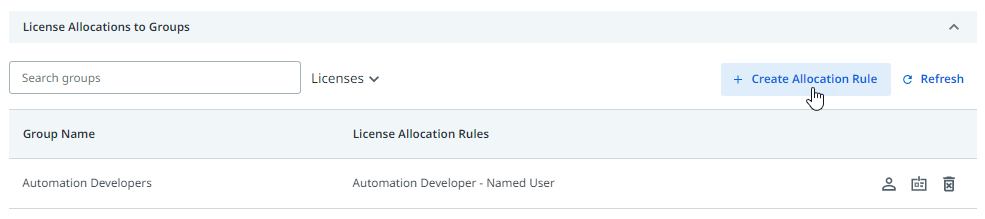
At the bottom of the page, select License Allocations to Groups to expand that section:

All the groups that currently have a license allocation rule set up are listed in this section, along with the types of user licenses that the rules assign.

Editing a license allocation rule
To edit a license allocation rule, take the following steps:
-
Select the Edit group allocation rule icon at the right end of the row:

The Edit Group Allocation Rule panel opens at the right of the window.
-
Select the checkboxes for the licenses you want to assign, or deselect the ones you no longer want to assign.
-
Optionally, configure a quota to control the number of licenses a group can acquire.
- If you enable a quota, the minimum value is 1.
- There is no upper quota limit. However, setting the quota higher than the number of available licenses means users can acquire up to the maximum number of available licenses.
- If you attempt to set a quota that is lower than the number of licenses already acquired by a group, an error message appears suggesting the need to adjust existing allocations.
-
Select Save at the bottom of the panel. If needed, select Refresh to refresh the table to notice your changes.
Adding a license allocation rule
-
Select Create Allocation Rule.
-
In the Add groups box, type to search for the name of a group and then select the group from the search results.
-
Select the checkboxes for the licenses you want to assign to members of this group.
-
Optionally, configure a quota to control the number of licenses a group can acquire.
- If you enable a quota, the minimum value is 1.
- There is no upper quota limit. However, setting the quota higher than the number of available licenses means users can acquire up to the maximum number of available licenses.
- If you attempt to set a quota that is lower than the number of licenses already acquired by a group, an error message appears suggesting the need to adjust existing allocations.
-
Select Save at the bottom of the panel. If needed, select Refresh to refresh the table to notice your new rule.
All current members of this group now have the selected licenses allocated to them, within the limit of licenses available for your organization.
Any licenses inherited by a user via a group are released after 3 months of user inactivity.
Bulk-editing license allocation for groups
You can edit the license allocation for multiple groups at once.
Using this option overwrites the existing license allocation.
-
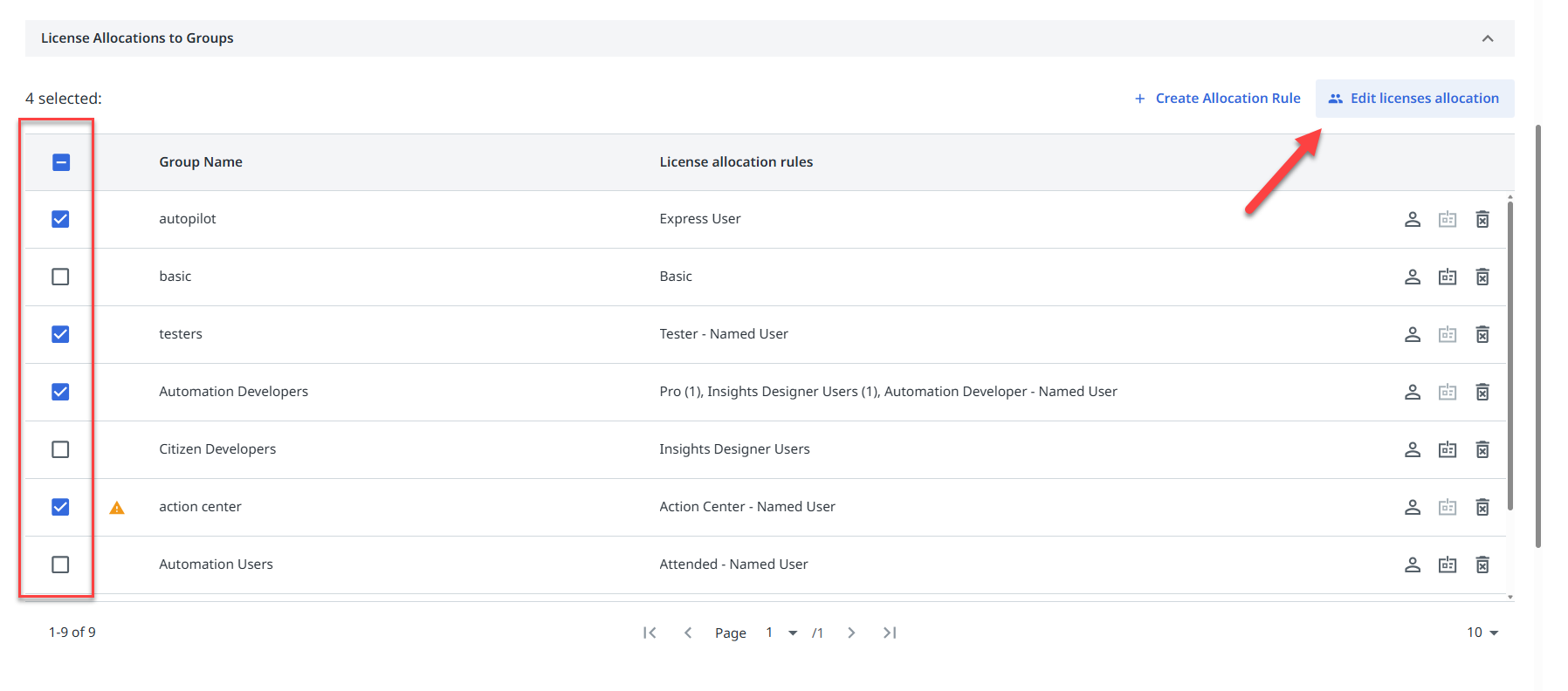
In your Admin > Licenses > License allocation to groups section, use the checkbox to select the groups whose license allocation you want to overwrite.
-
Select the Edit licenses allocation option at the top of the grid.
importantA warning icon next to the group name indicates that the group has more licenses allocated than are available in your organization. To resolve this issue, edit the license allocation rule and select one of the available license types.
-
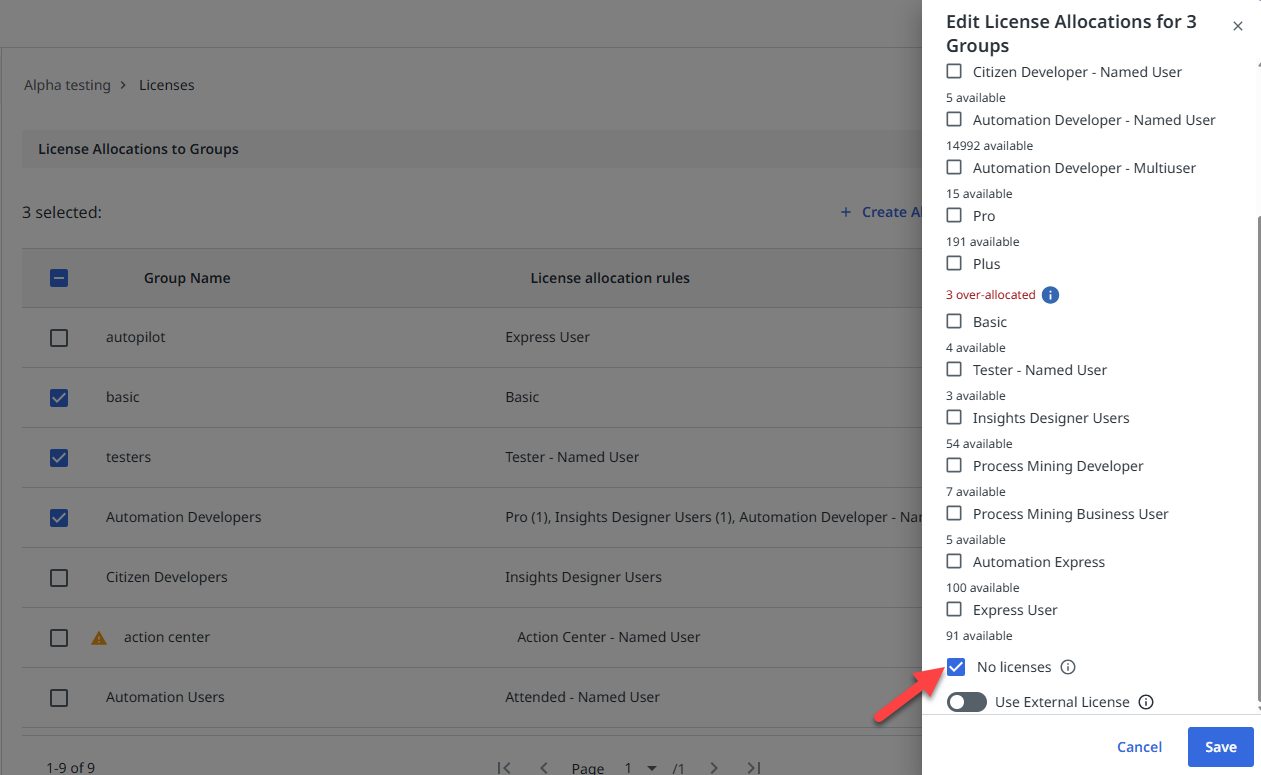
Select the new licenses to want to allocate to the selected groups, then Save.
-
To deallocate licenses for the selected groups, select the No licenses checkbox in the Edit License Allocations panel, then select Save.
Viewing and downloading group members with license inheritance
Adding a user to a license group makes the user inherit the licenses specific to that group, in addition to their user licenses.
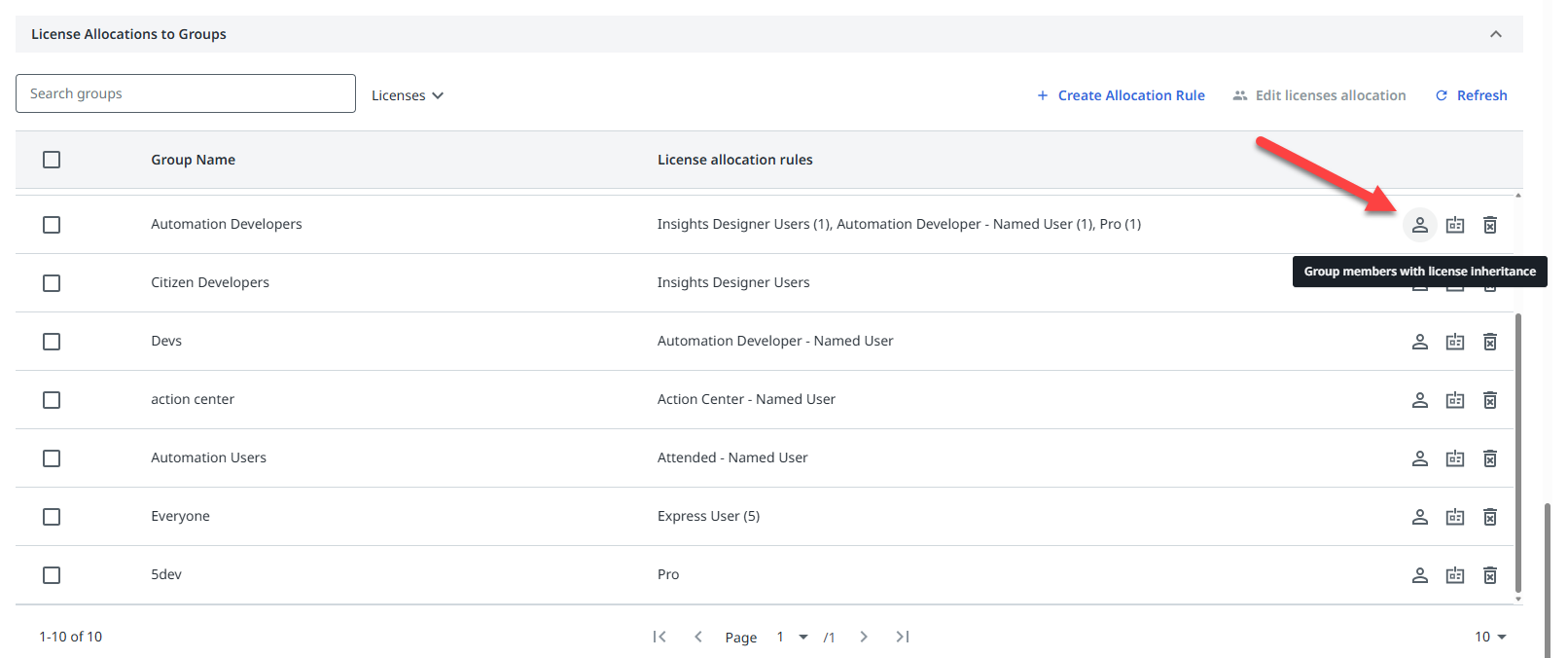
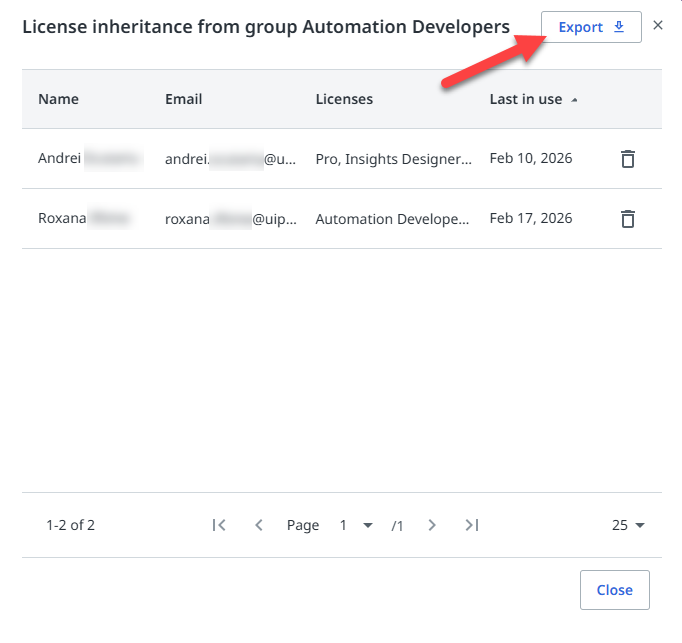
To view the users that inherit the licenses from a license group, select the user icon for that group. The License inheritance from group X panel opens, listing all users that inherit the group license.
To download the list, select Export at the beginning of the License inheritance from group X panel.
Managing licenses allocated to users
Another way to allocate user licenses from your organization's pool is to allocate the license directly to specific users.
This method of allocating user licenses is also known as direct allocation.
When you allocate a license to a user, any licenses they inherited from group allocation rules are released and the user retains only those licenses that are assigned directly.
Viewing allocated user licenses
-
Go to Admin, select the organization, and then select Licenses.
-
At the bottom of the page, select License Allocations to Users to expand that section:
 important
A warning icon next to the group name indicates that the group has more licenses allocated than are available in your organization. To resolve this issue, edit the license allocation rule and select one of the available license types.
All the users that currently have a license directly allocated to them are listed in this section, along with the types of user licenses assigned to them.

Allocating licenses to users
-
Select Allocate Licenses.

The Allocate Licenses panel opens at the right of the window.
-
In the Add users box, type to search for a user and then select the user from the search results.
You can add multiple users if you want to allocate the same licenses to all users.
-
Select the checkboxes for the licenses that you want to allocate to the selected users.
-
Select Save at the bottom of the panel.
-
If needed, select Refresh to refresh the table to notice the new users.
Editing a user's licenses
-
Select the Edit license allocation icon at the right end of the row:

The Edit license allocation panel opens at the right of the window.
-
Edit the user's allocated licenses:
- To remove the allocated licenses and allow the user to inherit licenses from group memberships, if any, select Use Group allocation rule.
- To change the licenses assigned to the user, under Allocate to User, select only the checkboxes for the licenses they should have.
-
Select Save at the bottom of the panel.
-
If needed, select Refresh to refresh the table.
The Licenses column is updated and now shows the updated list of licenses for the user.
Viewing and downloading group members with license inheritance
Adding a user to a license group makes the user inherit the licenses specific to that group, in addition to their user licenses.
To view the users that inherit the licenses from a license group, select the user icon for that group. The License inheritance from group X panel opens, listing all users that inherit the group license.
To download the list, select Export at the beginning of the License inheritance from group X panel.