Assigning test cases to requirements
You can assign test cases to requirements from either the Test Cases view or the Requirements view.
-
To assign a test case to a requirement, from the Test Cases view, perform the following steps.
- Open your project in Test Manager. If you do not have a project yet, see Creating a Project.
- In the left navigation panel, go to Test Cases. Select the test case key to open it.
- Select the Requirements tab.
- Select Assign and, from the Assign to Requirement dialog, select the check boxes of the requirements you want to associate your test case with. You can assign a test case to one or multiple requirements.
- Select Assign to save your changes.
- To unassign a requirement from a test case, open a test case, select the Requirements tab, identify the requirement, go to the end of the requirement row, and select
 (Unassign Requirement). In the dialog, select Unassign to save your changes.
-
To assign a test case to a requirement, from the Requirements view, perform the following steps.
- Open your project in Test Manager. If you do not have a project yet, see Creating a Project.
- In the left navigation panel, go to Requirements. Select the requirement key to open it.
- Select Tasks > Assign to Requirement.
- Select the requirement to be assigned to your test case. You can assign a test case to one or multiple requirements.
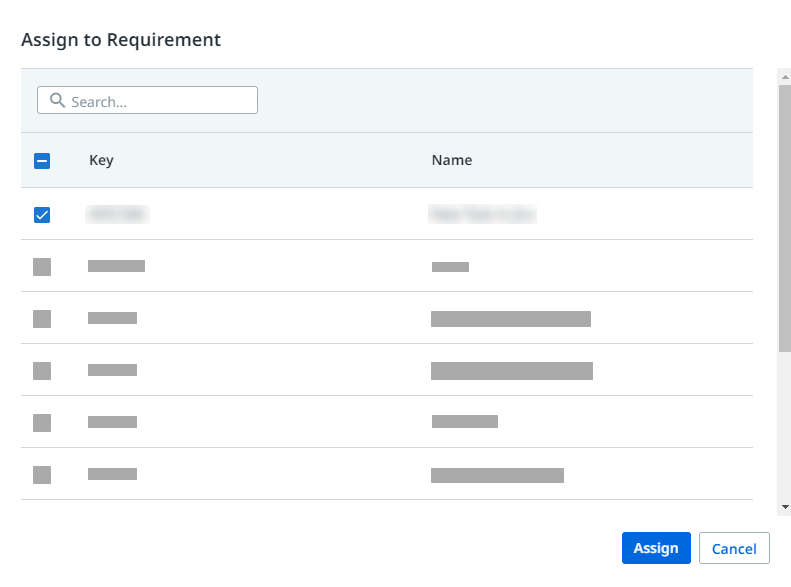 5. Select Assign to save your changes.