Automate test cases
Include automated test cases in your testing portfolio to save time automate repetitive tasks.
Assigning Automation to Test Cases
To assign automation to a test case in Test Manager:
- In Studio, open an existing project or create a new Test Automation.
- Open an existing test case or create a new one. For more information on test cases see .
important
Make sure that Studio is connected to Test Manager.
- In the Design ribbon, navigate to Test Manager > Link File to Test Manager.
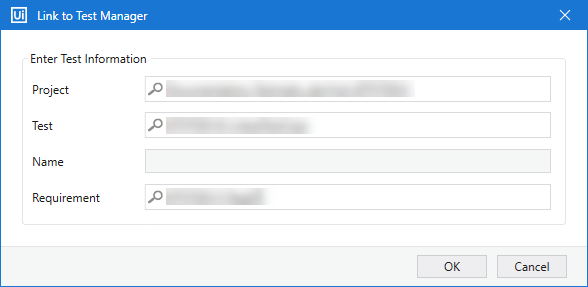
- Configure the following test information to link your test case to Test Manager:
To create a new test case for your automation
a. Select your Project. If you did not set a default project for Test Manager, see Integrating with Studio.
b. Enter a Name for your test case. This will create a correspondent test case in Test Manager.
c. (Optional) Select a Requirement from the dropdown list if you want to assign the test case to a specific requirement in Test Manager.
To link the automation to an existing test case
a. Select your Test Case from the dropdown list.
b. (Optional) Select a Requirement from the dropdown list if you want to assign the test case to a specific requirement in Test Manager.
- Click OK to confirm changes. The automated test case is executed in Orchestrator while the results show up in Test Manager.