User and Group Access Management
Access management is handled by the Test Manager Administrator that can assign tenant roles to users and groups, as well as create custom project roles, and Project Owners that can assign project roles to users and groups.
In Test Manager, there are two types of roles available:
- Tenant - these roles are relevant at tenant level.
- Project - these roles are relevant at project level.
Conditions
- Users that are signed in cannot be removed until they sign out.
Tenant roles
Tenant roles define the actions that a user or group can perform in the target tenant, regardless of the project roles they have assigned. These roles involve the ability of creating projects, creating custom roles, and assigning roles to users or groups.
The table below shows the available tenant roles and their corresponding descriptions.
| Tenant role | Description |
|---|---|
| Administrator | A Test Manager administrator can perform the following actions:
|
| Project Creator | A Project Creator can create testing projects. If you want non-administrator users to create projects without granting them administrator privileges, you can assign them only the Project Creator tenant role. |
Project roles
Project roles define the actions that a user or a group can perform inside a testing project, such as create manual test cases, or execute tests.
The table below shows the available project roles and their permissions.
Enable access management
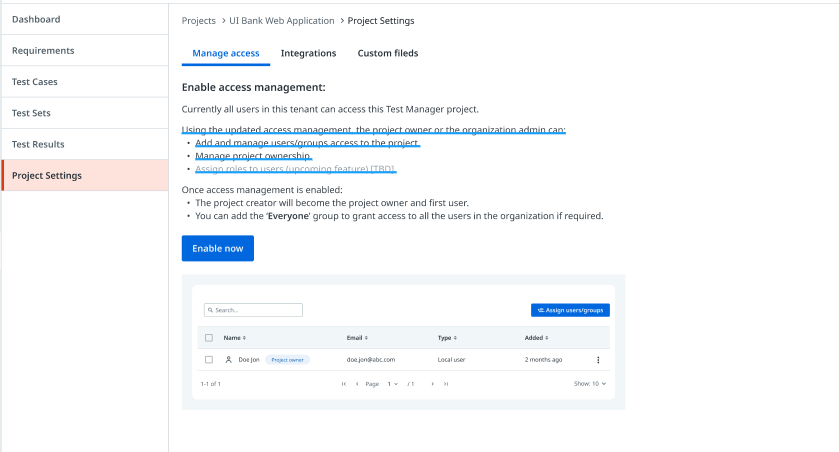
Required for legacy projects only. New projects have access management enabled by default.
To manage users and groups, you need to enable access management in your Test Manager project. Open Test Manager and navigate to Project Settings > Manage access, open a project, click Enable now, and then confirm your action. Now you can start assigning users and groups to your organization's projects.
Manage user and group access
If you have a legacy project, you might need to enable access management, to start assigning users and groups to your project.
Assign Users and Groups
To assign users and groups, you can perform the following actions:
- Assign tenant-specific roles to users and groups.
- Assign users and groups to testing projects.
- Assign project-specific roles to users and groups.
Assigning tenant roles to users and groups
To manage the actions that a user or group can perform at a tenant level in terms of testing projects, you can assign tenant-specific roles to a user or group.
- Open Test Manager.
- Select Settings in the header.
- Go to the Role Assignments tab.
- Select Assign users/groups.
- Enter a user or group in the form field. For example, you can assign roles to the Everyone group.
- Select the tenant user roles that you want to assign. You can choose from:
- Project Creator
- Administrator
- Select Add to confirm your action. The tenant roles are now assigned to the users and groups.

Assigning users and groups to projects
To grant users and groups read-only access to a project, you can assign them to a project, without assigning other project-specific roles to users and groups.
- Open rTest Manager.
- Open a project.
- Navigate to Project Settings > Manage Access.
- Select Assign users/groups.
- Enter a user or group in the form field. For example, you can assign access to the Everyone group.
- Press Enter to add the user/group. You can add multiple users and groups at once.
- Click Add to confirm your action. The users and groups are assigned to the project.

Assigning project roles to users and groups
To manage the actions that a user or group can perform inside a testing project, you can assign project-specific roles to users and groups. Visit User and Group Access Management to see the permissions for each project role.
- Open Test Manager.
- Open a project.
- Navigate to Project Settings > Manage Access.
- Select Assign users/groups.
- Enter a user or group in the form field. For example, you can assign access to the Everyone group.
- Select the user roles that you want to assign.
- Select Add to confirm your action. The selected roles are assigned to the specified users and groups.

Transfer Project Ownership
As Project owner, you can transfer this role to another user. The new user can grant Test Manager access to users and groups, and perform administrative tasks.
- Open Test Manager.
- Open a project.
- Navigate to Project Settings > Manage Access.
- Find the user to which you want to transfer project ownership and click the vertical ellipsis.
- Select Transfer ownership in the dropdown list.
- Confirm your action. Project ownership is now transferred to the new user.
Edit Individual User and Groups
You can edit roles or remove users and groups.
-
Open Test Manager.
-
Open a project.
-
Navigate to Project Settings > Manage Access.
-
Find the user or group that you want to edit and click the vertical ellipsis.
4.1 Select Edit roles to change the roles.
4.2 Select Remove user or Remove group to remove users or groups.
-
Confirm your action.
To perform a bulk operation, see Removing users and groups.
Related articles
Behavior of unlicensed users
Users invited to an organization without a Tester - Named User license can still explore Test Manager projects where they hold the Viewer role. Unlicensed users who hold the Viewer role in a project can perform the following actions:
- Open the project.
- Review and navigate through test objects, such as:
- Requirements
- Test Cases
- Test Sets
- Go to the Execution tab and view the list of grouped executions by Test Set.
note
Users who don't have a Tester - Named User license cannot open a test execution and view its details.
Custom roles
Creating custom roles
Create custom roles to reflect your authorization needs. Roles created and assigned in Test Manager are separated from the ones configured in Orchestrator.
Only Project owners can create custom Test Manager roles.
-
Select Settings in the Test Manager header.
-
In the Manage roles tab, select Create role.
-
Give a name and a description for the custom role.
-
Select the desired permissions for each test object:
All Test Manager users have Read permissions for all test objects selected by default, and you can't deselect it.

-
Select the tasks this role is allowed to perform:
Task Permissions Manual execution Allow user to perform manual execution for test cases and test sets. Automated execution Allow user to perform automated execution for test cases and test sets. Create and unlink defects Allow user to create and unlink defects.

- Select Create. The Role created succesfully message appears.
Editing custom roles
Edit custom user roles to reflect your authorization needs:
- Select Settings in the Test Manager header.
- In the Manage roles tab, select More options for the user role that you want to edit, and then select one of the following actions:
- Edit role - This opens the Edit role panel and you can edit the name, description and permissions.
- Clone - This opens the Clone role panel and you can edit the clone of the role that you're creating.
- Select Save to record your changes.
Deleting custom roles
- Select Settings in the Test Manager header.
- In the Manage roles tab, select one or more custom user roles, and then select Delete.
- In the Confirm dialog, select Delete.

When you delete a custom user role, it won't be assigned to any user anymore.